
The One Command That Saves You From Every Bad Commit
Every senior engineer has a story about the commit they wish they had read before pushing. A stray console.log that reached production. A merge that silently reverted three days of work. A single character change in a config file that broke CI for the whole company. Each of these starts the same way: the author did not run git diff before committing.
A 2023 GitHub Octoverse analysis of 2.5 million commits found that pull requests reviewed with diff context generate 60% fewer follow-up fix commits than those merged without review. Reading diffs well is not optional — it is the single most high-leverage skill in version control.
Git diff does far more than most developers realize. It can compare working tree against staging, staging against HEAD, any commit against any other, files across branches, and the symmetric difference between two histories. It has a dozen output formats, from classic unified diff to word-level, character-level, and visual side-by-side. Combined with a good difftool, it transforms code review from a chore into a rapid comprehension exercise.
This guide covers git diff end-to-end: the four states of a file, every diff target you will need, how to read hunk headers, advanced options for noise reduction, difftool integration with VS Code and Meld, three-dot vs two-dot ranges, and how GitHub and GitLab display diffs in pull requests. By the end, you will review code faster and catch more bugs.
The Four States of a File (Why Diff Has Multiple Targets)
To understand git diff, you must understand the four places a file can live in Git.
1. Working tree — the files on disk in your editor. Edit a file in VS Code and you change the working tree.
2. Index (aka staging area) — the snapshot that will become the next commit. git add moves changes from working tree to index.
3. HEAD — the latest commit on the current branch. Represents the committed state.
4. Remote — the version on origin or another remote. Represents what others see.
Different git diff invocations compare different pairs of these states:
git diff working tree vs index (what you have not staged) git diff --staged index vs HEAD (what is staged but not committed). Also: --cached git diff HEAD working tree + index vs HEAD (everything since last commit) git diff origin/main working tree vs remote branch git diff abc123 def456 any commit vs any commit git diff branch1 branch2 tip of one branch vs tip of another
This is why git diff feels confusing at first — the command is overloaded because there are multiple meaningful comparisons. Once you memorize the four states, every flag makes sense.
Reading Diff Output: +, -, @@, and Hunk Headers
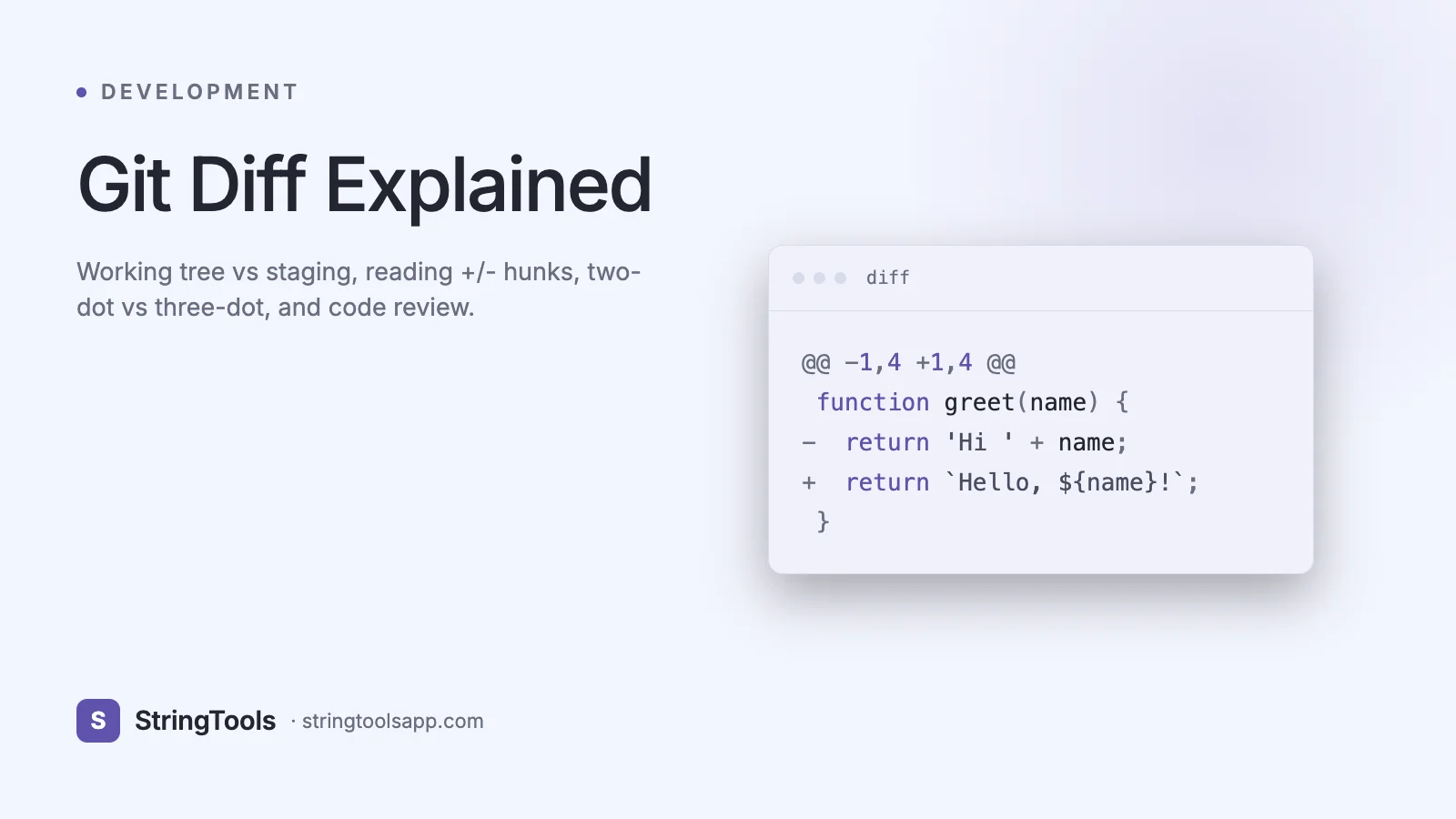
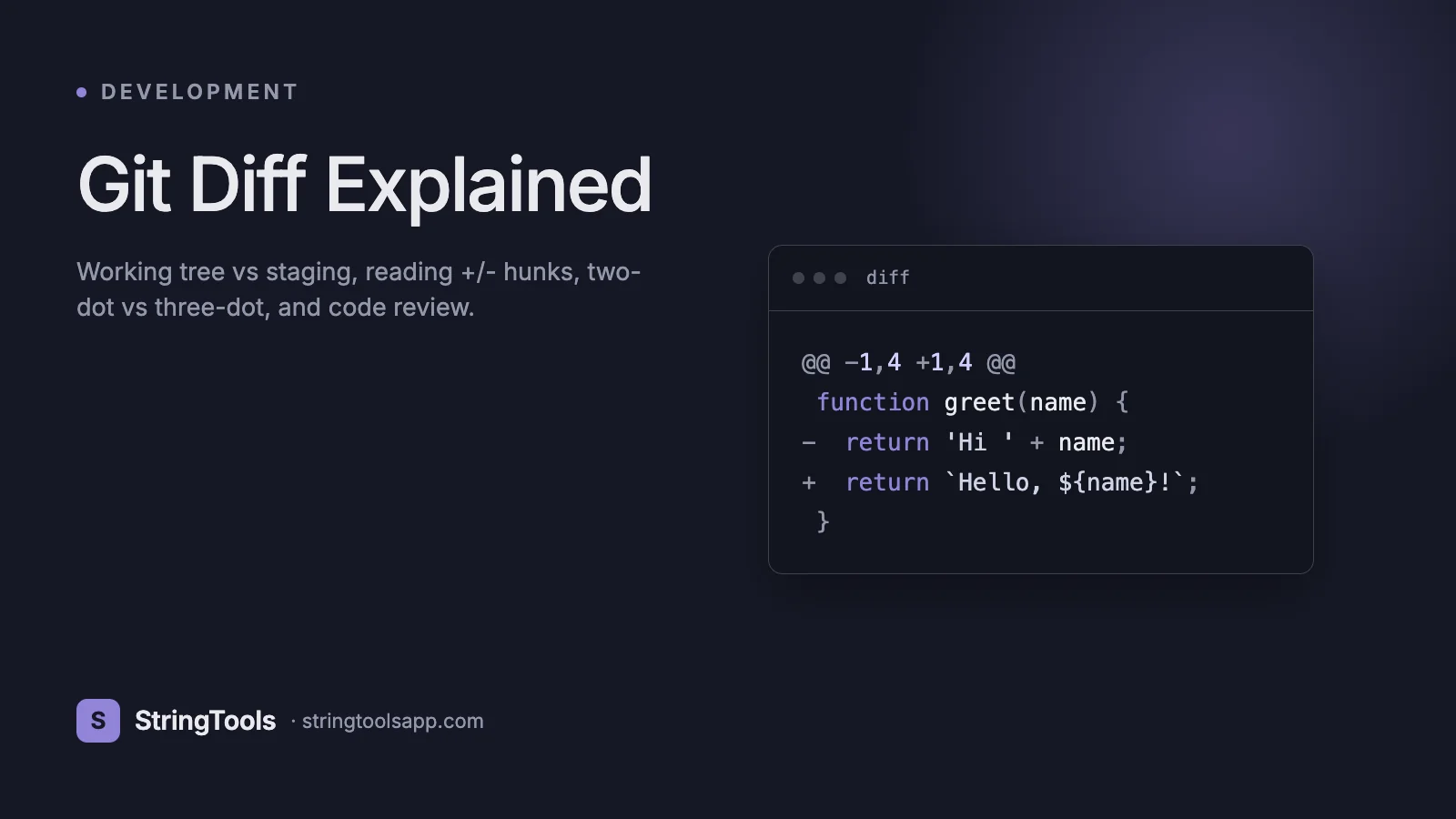
A git diff output has four layers. Here is an annotated example:
diff --git a/src/auth.js b/src/auth.js index 4a8f3b2..7c9d1e0 100644 --- a/src/auth.js +++ b/src/auth.js @@ -15,7 +15,8 @@ function login(user, password) { if (!user) throw new Error("Missing user"); - const hash = md5(password); + const hash = sha256(password); + logger.info("login attempt", { user }); return db.users.authenticate(user, hash); }
Line 1 (diff --git) — the file header. a/ is the old version, b/ is the new.
Line 2 (index 4a8f3b2..7c9d1e0 100644) — the SHA prefixes of the old and new blobs, and the file mode (100644 = regular file, 100755 = executable).
Lines 3-4 (--- and +++) — legacy unified diff format. Each line of the diff that starts with - was removed from a/ and each + was added to b/.
Line 5 (@@ -15,7 +15,8 @@) — the hunk header. This is the most important line. It reads: starting at old line 15, show 7 lines; starting at new line 15, show 8 lines. The text after the final @@ is the containing function or section (git calls this the hunk header context, driven by your gitattributes).
Lines 6+ — the actual content. Lines starting with a space are context (unchanged). Lines starting with - are removed. Lines starting with + are added.
Once you can read hunk headers, you can navigate any diff in any tool — GitHub, GitLab, Gerrit, Phabricator, and vim-fugitive all use the same format.
Essential Diff Commands You Will Use Weekly
Memorize these eight invocations. They cover 90% of day-to-day use.
1. Preview changes before staging:
git diff
2. Preview staged changes before committing:
git diff --staged
3. See everything changed since HEAD (staged plus unstaged):
git diff HEAD
4. Compare your branch to main:
git diff main...HEAD
(Three dots — explained in the next section.)
5. Compare a specific file across commits:
git diff abc123 def456 -- path/to/file.js
6. See which files changed without the diff content:
git diff --stat
Output: src/auth.js | 23 +++++++++++++++--------
7. Get a summary count:
git diff --shortstat
Output: 2 files changed, 45 insertions(+), 12 deletions(-)
8. Show only filenames that differ:
git diff --name-only
Add --name-status to also see A (added), M (modified), D (deleted), R (renamed) markers.
These build up. Chain with Unix: git diff --name-only main...HEAD | xargs eslint runs lint only on changed files.
Two-Dot vs Three-Dot: The Range Syntax You Must Understand
This is the single most misunderstood git syntax. Given two branches A and B:
git diff A..B (two dots) compares the tip of A to the tip of B directly. This is a plain A-vs-B comparison, regardless of history.
git diff A...B (three dots) compares the merge-base of A and B to the tip of B. In English: what did B add that is not on A?
Why it matters: when reviewing a feature branch, you want to see only the changes the feature introduced, not the changes main has made in the meantime. Three-dot diff does that.
GitHub pull requests show three-dot diffs by default. GitLab merge requests also use three-dot by default. If you compare manually with two dots, you will see unrelated changes from main that were never part of the feature branch, and reviews will go sideways.
For git log the meaning flips in a subtle way (log A...B shows commits in either A or B but not both). Remember: for diff, three dots means since the common ancestor.
One more useful range form: git diff branch^! is shorthand for git diff branch^ branch — the change introduced by that single commit, same as git show branch without the commit metadata.
Reducing Diff Noise: Whitespace, Word-Level, and Renames
Real diffs have noise. These flags strip it out so real changes jump off the page.
Ignore whitespace changes:
git diff -w ignore all whitespace git diff --ignore-space-change ignore changes in amount of whitespace git diff --ignore-blank-lines ignore lines that are only whitespace
These are essential when reviewing code that went through a formatter. Without them, a Prettier reformat adds 500 lines of noise to every PR.
Word-level diff:
git diff --word-diff=color highlights changed words inline git diff --word-diff-regex=. character-level diff
Instead of showing a whole removed line and a whole added line, word-diff highlights only the changed words. Perfect for documentation, README edits, and long-form text.
Rename detection:
git diff -M detect renames (default 50% similarity) git diff -M90% require 90% similarity git diff --find-renames=75% same, verbose form git diff -C detect copies as well as renames
Without these, a rename shows as a full-file delete and a full-file add. With them, you see just the small changes between the old and new file. Rename detection is on by default in most git configs but sometimes needs tuning.
Follow through history:
git log --follow --diff-filter=M -p path/to/file.js
Walks through the file history even across renames. Indispensable for archeology.
Visual Diff Tools: difftool with VS Code, Meld, Beyond Compare
The terminal is fine for small diffs. For large refactors, visual side-by-side comparison is faster. git difftool wraps git diff to launch an external tool.
Set up VS Code as your difftool:
git config --global diff.tool vscode git config --global difftool.vscode.cmd 'code --wait --diff $LOCAL $REMOTE'
Now git difftool opens the diff in VS Code side-by-side view. Add the --dir-diff flag to compare entire directories at once.
Other popular setups:
Meld (cross-platform, free):
git config --global diff.tool meld
Beyond Compare (commercial, very powerful):
git config --global diff.tool bc3 git config --global difftool.bc3.trustExitCode true
Kaleidoscope (macOS, commercial):
git config --global diff.tool Kaleidoscope
For a richer terminal experience without switching tools, install delta — a syntax-highlighted diff pager written in Rust. Configure once in your gitconfig and every git diff, git log -p, and git show becomes syntax-highlighted with line numbers and a much cleaner layout. Delta is now the default in many dev environments, including GitHub Codespaces.
Interactive Staging with git add -p and git diff
One of the most underused git features: interactive partial staging. Combined with git diff it lets you craft clean, focused commits from messy working trees.
The workflow:
1. Run git diff to review all unstaged changes. 2. Run git add -p (or git add --patch). 3. Git walks through each hunk and asks what to do.
For each hunk, you can answer:
y — stage this hunk n — skip this hunk s — split this hunk into smaller ones e — edit this hunk manually q — quit ? — help
This is how you turn a working tree with seventeen unrelated changes into three clean, reviewable commits. git reset -p does the opposite — unstaging hunks one at a time.
The interactive experience is also available in VS Code (Source Control panel, click the + on individual diff lines), GitKraken, Tower, and the lazygit TUI. Once you try hunk-level staging, commit hygiene improves dramatically. No more miscellaneous changes commits.
git diff vs git show vs git log -p
Three commands show diff-shaped output. Knowing which to use saves time.
git diff — compares any two states (working tree, index, commits, branches). Does not show commit messages. Use for previewing uncommitted work or comparing branches.
git show COMMIT — shows the commit message plus the diff introduced by that commit. Equivalent to git diff COMMIT^ COMMIT with extra metadata. Use when investigating a specific commit.
git log -p — walks history showing commit message plus diff for each commit. Use for archeology: what changed in this file over the last month?
Some useful combinations:
git log -p --since="2 weeks ago" path/to/file.js
Show every change to a file in the last two weeks with commit messages.
git log --oneline --stat main..HEAD
Summary of commits on your branch with file-change stats.
git show HEAD --stat
What did the last commit touch, at a glance.
Feature — git diff • git show • git log -p Shows commit message — No • Yes • Yes Compares arbitrary states — Yes • No • No Walks history — No • No • Yes Typical use — Review uncommitted • Inspect one commit • Archeology
Pick the right tool and your git fluency doubles.
Reading Diffs in GitHub and GitLab Pull Requests
Most code review happens in a web UI. The skills transfer directly — what you read in the terminal is what the web shows you, just styled.
GitHub pull request Files changed tab shows a three-dot diff (feature branch changes relative to the merge base with target). Each file has:
- A header with path, additions, deletions
- Expandable context (click the arrow to load surrounding unchanged lines)
- Inline comment threads on any line (click +)
- Viewed checkbox to track progress
- Collapse button to hide reviewed files
Press ? anywhere on GitHub to see keyboard shortcuts. Useful ones: j/k move between files, n/p move between comments, c collapses the current file.
GitLab merge requests have similar ergonomics. The Changes tab shows the same three-dot diff. Suggestions can include ready-to-apply patches directly in comments — one click and the suggestion becomes a commit.
For large PRs, both platforms let you switch between unified (one column) and split (side-by-side) view. Split view is easier for wide terminals; unified is easier for narrow browsers. GitHub also supports Hide whitespace changes — use it whenever you suspect a Prettier run polluted the diff.
Copy a permalink to any diff line by clicking the line number. Essential for referencing changes in Slack or tickets.
Six Common Mistakes and How to Avoid Them
1. Committing without diffing. The root cause of 50% of fix up commits. Run git diff --staged as muscle memory before every commit.
2. Using two-dot ranges to review feature branches. Shows unrelated changes from main. Always use three-dot: git diff main...HEAD.
3. Reviewing diffs with whitespace noise. Add -w when a formatter ran. Filter out what you did not change.
4. Missing renames. Without -M, renames look like deletes plus adds. Git configures -M by default, but some tools disable it. Verify with git config --get diff.renames.
5. Ignoring the hunk header context. The text after @@ @@ tells you which function you are in. Scan it before reading the lines — it saves seconds per hunk and adds up over a 1000-line PR.
6. Squashing before review. A force-push after squashing loses the reviewer progress. Squash only after approval, never during active review.
Best Practices for High-Signal Code Review
Keep PRs small. Google internal data shows that PRs under 200 lines get 80% of the comments they deserve. PRs over 1000 lines average 3 comments regardless of what is in them — reviewers disengage.
Write a PR description that explains the why. Reviewers see the what in the diff. The description should cover motivation, approach, and anything non-obvious (why not X? what about Y?).
Review in two passes. First pass: read the description and the diff top to bottom for overall structure. Second pass: examine each hunk for correctness. Do not comment during the first pass — you will catch issues in the second pass that make early comments irrelevant.
Comment on diffs, not lines. On GitHub, select a range of lines before clicking + — your comment attaches to the whole block. More context, less noise.
Use suggestion blocks for small fixes. Both GitHub and GitLab render suggestion code blocks as one-click applyable patches. Beats back-and-forth comments.
Approve with conditions sparingly. A conditional approve (LGTM if you fix X) only works if you trust the author to actually fix X. In most teams, request changes and re-review is less ambiguous.
Use git diff locally before the PR exists. Running git diff main...HEAD on your own work before opening the PR catches 30% of issues that would otherwise become reviewer comments. It is the cheapest feedback loop in software.
Frequently Asked Questions
What is the difference between git diff and git diff --staged?
git diff shows changes in your working tree that you have not yet staged. git diff --staged (also written --cached) shows changes you have staged but not yet committed. Together they cover everything between your last commit and your editor. git diff HEAD combines both.
How do I see the diff for a single commit?
git show COMMIT is the easiest form. It shows the commit message plus the diff. Alternatively, git diff COMMIT^ COMMIT shows just the diff without metadata. For the most recent commit, git show or git show HEAD.
Why does git diff show nothing when I expect changes?
Probably because you already ran git add. Plain git diff only shows unstaged changes. Try git diff --staged or git diff HEAD to include staged work.
How do I diff two files that are not in a repo?
git diff --no-index file1 file2 works on any two files anywhere on disk. Great for comparing config files between environments. For in-browser diffing of pasted text, use the StringToolsApp Diff Checker at https://stringtoolsapp.com/diff-checker.
Can I undo a git diff?
Git diff is read-only — it never changes anything. You cannot undo it because it did nothing. If you want to undo changes shown by git diff, use git restore path/to/file (for unstaged) or git restore --staged path/to/file (to unstage).
How do I show only the added lines, not the context?
git diff -U0 shows zero lines of context — only actual additions and deletions. Default is 3 lines. Useful for machine parsing but hard to read for humans.
What is the best difftool?
For most developers, VS Code built-in diff is enough. For power users, delta (terminal) and Meld (GUI) are both excellent and free. Beyond Compare is the gold standard if you can justify the license, especially for directory-level diffs with merge.
How do I diff binary files?
Git cannot show line-level diffs for binary formats. For images, use the imgdiff extension or GitHub rich diff for PNG/JPG. For PDFs, git can run pdftotext via a textconv filter. See gitattributes documentation for textconv setup.
Key Takeaways
git diff is not a single command — it is a family of comparisons across the working tree, index, HEAD, branches, and remotes. Mastering it means knowing which comparison you want and picking the right flags.
The three skills that matter most: reading hunk headers fluently, understanding two-dot versus three-dot ranges, and using --word-diff and -w to strip noise. With those three, you will review twice as much code in half the time.
Run git diff as a reflex before every commit. Use git diff main...HEAD before opening every pull request. Review others code in split view with whitespace changes hidden. These three habits alone will make you the kind of engineer teammates trust with critical reviews.
For ad-hoc text comparison outside a git repo — comparing pasted logs, config files, API responses — the StringToolsApp Diff Checker at https://stringtoolsapp.com/diff-checker gives you git-style inline and side-by-side diffs entirely in your browser, with no upload.