
Why Image Compression Still Matters in 2026
Network speeds have grown, but so have screen resolutions, image counts, and user expectations. A typical 2026 product page on an e-commerce site loads 30 to 80 images. Mobile users on flaky 4G or 5G in tier-2 Indian cities, rural Brazil, or African markets see 8-second page loads when those images are unoptimized — and 2-second loads when they are.
Storage is also an issue. Cloud providers charge ₹2 to ₹3 per GB per month for hot storage. A small business with 500,000 product images at 4 MB each pays ₹4,000 per month for raw storage; the same images compressed to 400 KB each cost ₹400 per month. CDN egress fees add another 50 to 100 percent on top.
Beyond money, there is sustainability. Data centers consumed roughly 2 percent of global electricity in 2025, and image transfer is a meaningful slice of that. Every megabyte saved across millions of page loads compounds into measurable energy savings.
Finally, there is accessibility. A user on a metered connection in Kenya or rural Maharashtra cannot afford to download 50 MB to view a single article. Compressed images make the web usable for the next billion users.
How Image Compression Actually Works
Image compression splits into two camps: lossless and lossy.
Lossless compression preserves every original pixel exactly. It works by finding statistical redundancy — runs of identical pixels, repeated patterns — and encoding them more efficiently. PNG uses DEFLATE (the same algorithm as ZIP) on filtered pixel rows. Lossless WebP uses LZ77 with a custom dictionary. Typical lossless compression ratios on natural photos are 1.5:1 to 2:1; on screenshots and graphics with large flat areas, 5:1 to 20:1.
Lossy compression discards information the eye does not notice and achieves much higher ratios — often 10:1 to 30:1. The dominant technique is the Discrete Cosine Transform (DCT), used in JPEG since 1992. Here is the simplified pipeline:
1. Convert RGB pixels to YCbCr (luminance + two chrominance channels). The eye is far more sensitive to brightness than color. 2. Subsample the chrominance channels (4:2:0 subsampling halves them in both dimensions, removing 75 percent of color data). 3. Split each channel into 8×8 blocks and apply DCT, which expresses each block as a sum of 64 cosine wave patterns. 4. Quantize the DCT coefficients — divide by a quality-dependent quantization matrix and round to integers. Most coefficients become zero. 5. Encode the surviving coefficients with Huffman or arithmetic coding.
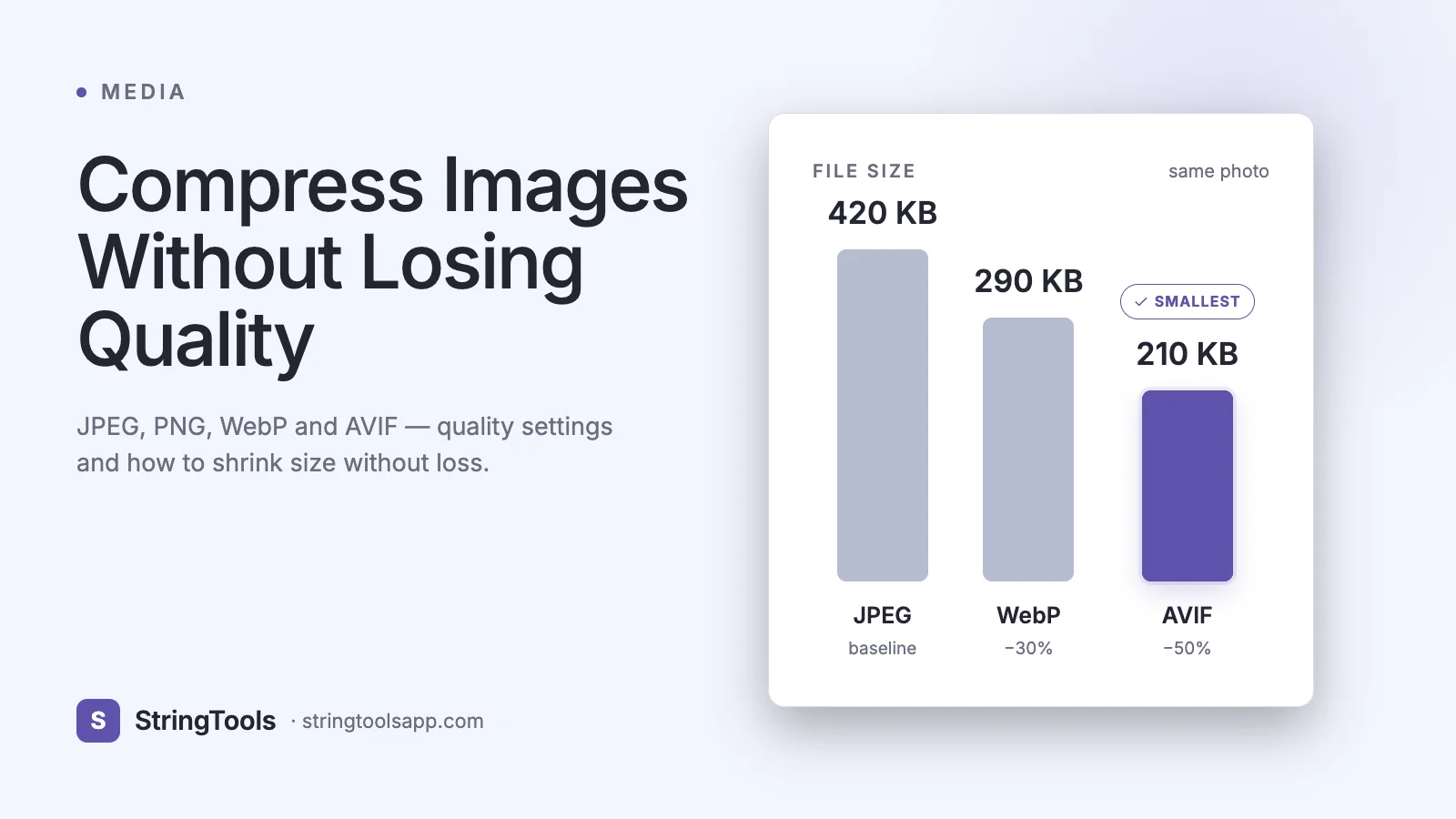
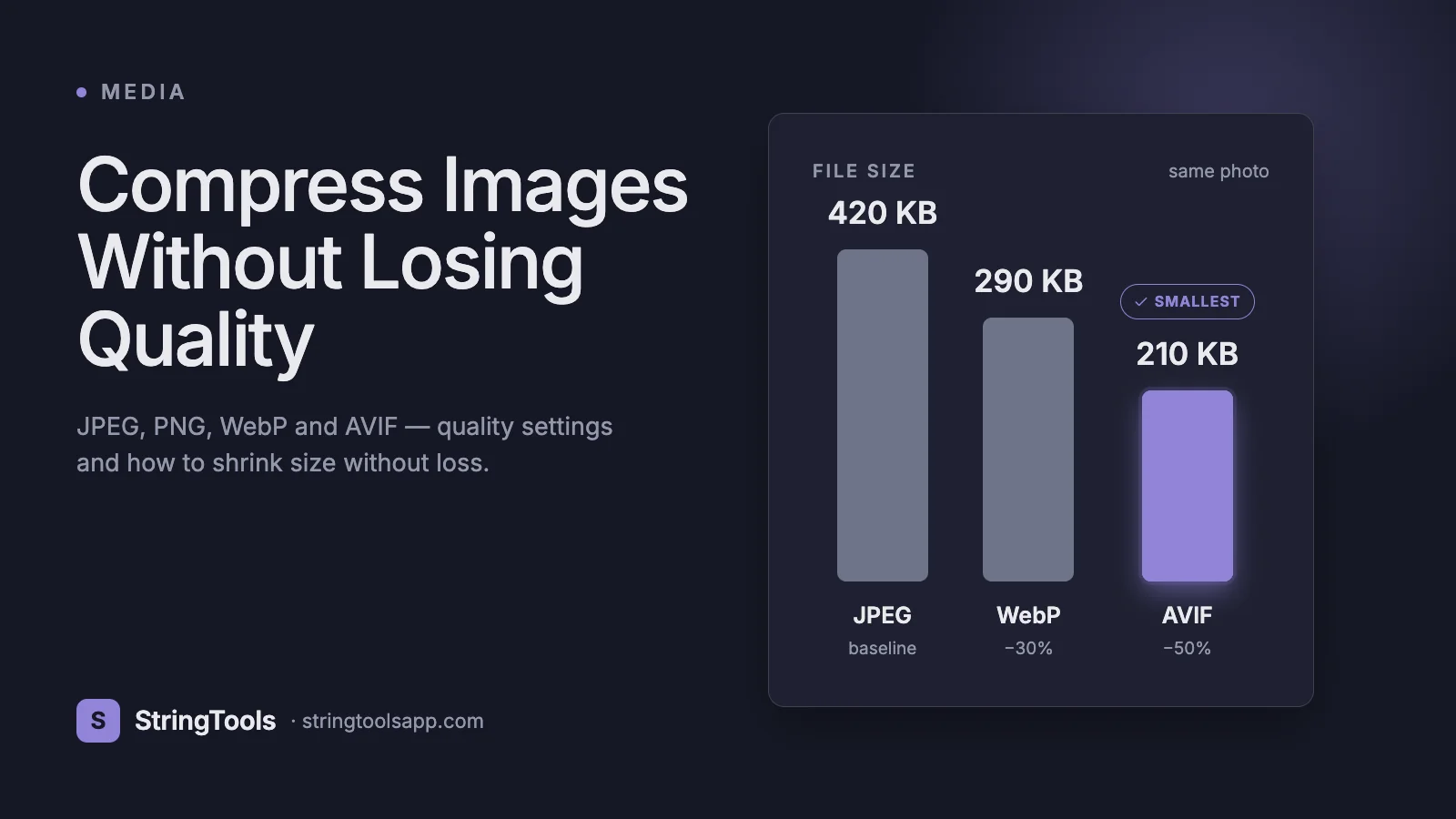
Newer formats refine each stage. WebP (2010) replaces DCT with a predictive intra-frame coder borrowed from VP8 video. AVIF (2019) uses AV1's much smarter intra-prediction and supports 12-bit color. HEIC (2015) uses HEVC's hierarchical block structure. The trend is clear: every five to seven years, a new format halves the file size at equal visual quality.
Choosing the Right Format: JPEG, PNG, WebP, AVIF, HEIC
Format | Year | Compression | Transparency | Animation | Browser Support 2026 JPEG | 1992 | Lossy | No | No | 100% PNG | 1996 | Lossless | Yes (8-bit alpha) | No (APNG variant) | 100% GIF | 1987 | Lossless 8-bit | 1-bit | Yes | 100% WebP | 2010 | Lossy + lossless | Yes | Yes | 99% (Safari since 14) AVIF | 2019 | Lossy + lossless | Yes (12-bit alpha) | Yes | 95% (Safari since 16.4) HEIC | 2015 | Lossy | Yes | Yes (Live Photos) | 35% web; 100% Apple ecosystem
Use JPEG for photographs intended for universal compatibility. Quality 75 to 85 is the sweet spot — higher is wasteful, lower introduces visible artifacts.
Use PNG for screenshots, line art, logos, diagrams, and any image with sharp edges or transparency. PNG-8 (256 colors) compresses much better than PNG-24 for graphics.
Use WebP for the modern web. Lossy WebP averages 25 to 35 percent smaller than equivalent JPEG; lossless WebP averages 26 percent smaller than PNG.
Use AVIF when you need the smallest possible files and your audience is on modern browsers. AVIF averages 50 percent smaller than JPEG at equivalent quality, but encoding is 5 to 10 times slower.
Use HEIC only within the Apple ecosystem. Convert to JPEG or WebP before sharing across platforms — many Windows and Android apps still struggle with HEIC.
GIF should not be used for static images in 2026. For animations, prefer WebP or AVIF; for short videos, prefer MP4.
Resolution, DPI, and the 1920px Rule
Resolution (the pixel dimensions of an image) and DPI (dots per inch, a printing concept) are often confused. For digital displays, only pixel dimensions matter. A 3840×2160 image is 4K regardless of whether its EXIF metadata says 72 DPI or 300 DPI.
The single highest-impact compression decision is usually resizing, not re-encoding. A 24-megapixel photo from a modern phone is 6000×4000 pixels. Displayed full-screen on a 1920×1080 monitor, it shows only 1920×1080 — every other pixel is invisible. Resizing the source to 1920×1080 cuts file size by roughly 90 percent before any quality reduction.
The practical rule for web images in 2026: cap the longest edge at 1920 pixels for hero images, 1200 pixels for content images, 600 pixels for thumbnails, and 200 pixels for avatars. Combined with quality 80 JPEG or quality 75 WebP, this produces files in the 50 to 250 KB range — fast on every connection.
For print, the math reverses. A 6×4 inch print at 300 DPI requires 1800×1200 pixels; an A4 page at 300 DPI requires 2480×3508 pixels. Print quality genuinely benefits from higher resolution, but the same image embedded in a website at 600 pixels wide is wasted bandwidth.
DPI metadata only affects the default print size. It does nothing on screens. Tools that 'increase DPI' without resampling pixels do not improve quality; they merely change a metadata tag.
Real-World Compression Targets
Web hero images: 1920px wide, WebP quality 75 with JPEG fallback at quality 80. Target: 100 to 250 KB.
Web content images: 1200px wide, WebP quality 75. Target: 50 to 150 KB.
E-commerce product photos: 2000px square (zoom version) at quality 85, plus 800px thumbnail at quality 80. Targets: 300 KB and 50 KB.
WhatsApp shares: WhatsApp auto-compresses to roughly 1600px wide and quality 70 unless you send as a 'document.' For best quality on WhatsApp, send at 1920px wide JPEG quality 85 — under WhatsApp's 16 MB limit. For documents that must preserve original quality, use the document option.
Email attachments: Most providers cap at 25 MB total. A 10-photo email should target 2 MB per photo: 1920px JPEG quality 80.
Indian Aadhaar photo: Requirements vary by enrollment center, but the typical specification is 600×800 pixels, JPEG, between 50 KB and 200 KB, white background, recent photo. Use quality 75 and resize precisely.
Indian Passport / PAN photo: 35×45 mm at 300 DPI, JPEG, 20 to 200 KB depending on the portal. Always check the latest spec on the official site.
LinkedIn profile photo: 400×400 minimum, 7680×4320 maximum, under 8 MB. Practically, 800×800 JPEG quality 85 works perfectly.
Instagram post: 1080×1080 (square) or 1080×1350 (portrait), JPEG quality 85. Instagram re-compresses on upload, so over-compressing first compounds losses.
Step-by-Step: Compressing Images Without Visible Loss
Step 1: Identify the use case. Print, web, archive, or share? Each has different optimal settings.
Step 2: Choose the format. Photos: JPEG or WebP. Screenshots/graphics: PNG or WebP lossless. Cutting-edge web: AVIF.
Step 3: Resize first. Determine the maximum display size and resize the source. A 6000×4000 image displayed at 1200×800 should be resized to 1200×800 before any other operation. Resizing alone often reduces file size by 80 to 95 percent.
Step 4: Strip unnecessary metadata. Camera EXIF, GPS coordinates, and color profiles can add 50 to 200 KB to a JPEG. Remove them unless you need them for archival or copyright purposes.
Step 5: Apply quality compression. For JPEG, quality 80 is the sweet spot for photos — almost indistinguishable from quality 100 to the human eye, but 4 to 6 times smaller. For WebP and AVIF, start at quality 75. For PNG, use a quantizer like pngquant to convert PNG-24 to PNG-8 when the image has fewer than 256 distinct colors.
Step 6: Compare visually at 100 percent zoom. Look for blocky artifacts in flat areas (sky, walls), ringing around sharp edges (text, logos), and color banding in gradients. If you see artifacts, increase quality by 5 and retry.
Step 7: A/B the result against the original at the actual display size. If the compressed version looks identical at 1× zoom, you have your file.
Step 8: Generate format variants. For web, output both WebP and JPEG with HTML <picture> element fallbacks. Modern browsers pick the smallest format they support automatically.
For a privacy-respecting, browser-based workflow that handles steps 3 to 7 in seconds, the StringToolsApp Image Compressor at /image-compressor processes images entirely on your device with no upload required.
Common Compression Mistakes to Avoid
Mistake 1: Re-saving JPEG files repeatedly. Every JPEG save is lossy. Editing a JPEG, saving, opening, editing again, and saving introduces generation loss that compounds. Always edit from a lossless master (PNG, TIFF, or RAW) and export JPEG once at the end.
Mistake 2: Using PNG for photos. PNG is lossless, which sounds great, but it is also 5 to 10 times larger than equivalent-quality JPEG for photographic content. Reserve PNG for graphics with sharp edges and limited color palettes.
Mistake 3: Cranking quality to 100. JPEG quality 100 is rarely visually different from quality 90 but can be twice the file size. Quality 80 to 85 is the practical maximum for most uses.
Mistake 4: Ignoring chroma subsampling. 4:2:0 subsampling is the default and is fine for most photos, but it destroys sharp red and blue text. For text-heavy images or screenshots saved as JPEG, force 4:4:4 subsampling — or just use PNG.
Mistake 5: Resizing after compressing. Compress-then-resize amplifies artifacts. Always resize first, compress last.
Mistake 6: Forgetting transparency. JPEG does not support transparency. Saving a transparent PNG as JPEG fills the transparent areas with black or white, often unexpectedly.
Mistake 7: Stripping ICC profiles unconditionally. Color-managed workflows (print, professional photography) need the embedded sRGB or Adobe RGB profile. Web-only images can usually drop them safely.
Mistake 8: Trusting EXIF rotation. Many tools ignore EXIF rotation tags, leading to sideways images. Bake the rotation into the pixels before compressing.
Best Practices for Modern Image Pipelines
Build responsive image variants. Generate at least three sizes per image (small, medium, large) and use HTML's srcset attribute or CSS image-set so each device downloads only what it needs.
Serve modern formats with fallbacks. <picture><source type="image/avif"><source type="image/webp"><img src="fallback.jpg"></picture> lets browsers pick the smallest format they support.
Use a CDN with image optimization. Cloudflare Polish, Vercel Image Optimization, and AWS CloudFront with Lambda@Edge can transform images on the fly based on the requesting browser's Accept header.
Lazy-load below-the-fold images. The HTML loading="lazy" attribute defers offscreen images until the user scrolls near them, slashing initial page weight.
Automate compression in CI/CD. Tools like imagemin, sharp, and cwebp can run in your build pipeline, ensuring every committed image is automatically optimized.
Measure with Lighthouse. Google's Lighthouse reports the byte savings from properly sized and modern-format images. Aim for 0 KB of potential savings.
Document your defaults. Pick one quality setting (quality 80 JPEG, quality 75 WebP) and one max dimension (1920px) as team defaults. Consistency beats individual optimization.
Browser-Based vs Server-Based Tools: The Privacy Question
Online image compressors fall into two architectural camps with very different privacy implications.
Server-based tools upload your image to their servers, compress it remotely, and send back the result. Examples include older versions of TinyPNG and most generic 'compress image online' results. Speed depends on server capacity. Privacy is whatever the operator's policy says — often unclear, often retained for analytics, sometimes used to train ML models.
Browser-based tools run entirely in JavaScript or WebAssembly inside your browser. The image never leaves your device. Modern hardware can handle even 50-megapixel photos in seconds thanks to WebAssembly ports of libwebp, MozJPEG, and libavif. StringToolsApp's Image Compressor is in this category.
For sensitive content — passport photos, medical scans, ID documents, internal company screenshots — browser-based tools are the only safe choice. Even if a server-based operator has good intentions, breaches happen, subpoenas happen, and acquisitions change privacy policies overnight.
How to verify: open browser DevTools, switch to the Network tab, and watch what fires when you upload an image. Truly browser-based tools will show no network requests with your image data — only static asset loads. For a deeper discussion of secure architecture, read /blog/api-security-best-practices.
A lesser-known concern: some 'free' compressors strip EXIF metadata silently, including copyright information you may have legally needed to preserve. Always check the output before publishing.
Finally, watch for tools that re-upload your supposedly compressed file to a third-party 'mirror' or analytics service. If the privacy policy is more than 2,000 words long, the operator is probably hiding something.
Frequently Asked Questions
Q: What is the best image format in 2026? A: AVIF for new web projects targeting modern browsers, WebP as a near-universal compromise, JPEG for guaranteed compatibility, and PNG for graphics with transparency. There is no single 'best' — pick by use case.
Q: Will compressing my image to 80 percent quality reduce its resolution? A: No. Quality controls how aggressively pixel data is encoded; resolution (pixel dimensions) is independent. An image can be 4000×3000 at quality 50 or 800×600 at quality 100.
Q: How small can I compress a photo without it looking bad? A: For typical 1920×1080 photos, JPEG quality 75 to 80 produces 200 to 400 KB files that are visually indistinguishable from the original. Below quality 60, blocking and ringing become noticeable.
Q: Why do my WhatsApp photos look bad? A: WhatsApp re-compresses every photo sent in a chat unless you send it as a 'document.' To preserve quality, attach the image as a document or use the WhatsApp 'HD' option (rolled out in 2023).
Q: How do I compress a photo to under 50 KB for an Indian government form? A: Resize to the required dimensions (often 200×230 or 600×800), save as JPEG at quality 60 to 70, and verify the file size. If still too large, drop quality 5 at a time. Avoid PNG for this use case.
Q: Is AI-based image compression actually better? A: Neural-network compressors (Google's HiFiC, Disney's Lossy Image Compression) can produce slightly smaller files at equal perceptual quality on photographs, but encode times are 100 to 1,000 times slower than AVIF, and decoders are not built into browsers. For 2026, conventional codecs remain the practical choice.
Q: Should I keep the original after compressing? A: Always. Treat compression as a one-way transform applied at export time. Keep RAW or PNG masters for editing; compress only when sharing or publishing.
Q: How do I batch-compress hundreds of images? A: Use a tool that supports drag-and-drop multi-file workflows or scripts (sharp, ImageMagick, cwebp). Browser-based batch tools work on folders up to about 200 images per session before memory becomes an issue.
Conclusion: Smaller Files, Same Beautiful Images
Image compression is not a single technique — it is a series of small decisions about format, resolution, quality, and metadata that together produce dramatic file-size savings with no visible loss. Resize first, choose the right format, set quality at 75 to 85, strip metadata you do not need, and you will routinely cut file sizes by 80 to 95 percent.
For everyday compression — preparing a photo for WhatsApp, an Aadhaar form, a website, or an email — you do not need Photoshop or a command-line workflow. The free, browser-based StringToolsApp Image Compressor at https://stringtoolsapp.com/image-compressor handles JPEG, PNG, and WebP entirely on your device. Drag in a file, pick your target size, and download the result. Nothing uploads. Nothing is logged. Nothing leaves your browser.
When you need fast, private, high-quality image compression, /image-compressor is the right choice. Bookmark it, share it, and stop sending 8 MB photos when 400 KB will do.