
The 2am Production Incident That Starts With Unreadable JSON
It's 2am. Your on-call pager has gone off. A customer-facing API is returning 500s, and the only clue you have is a 40KB blob of minified JSON pasted into a Slack thread by your monitoring system. You open your favorite online JSON formatter, paste it in, and pause — because that payload contains a customer's session token, internal account identifiers, and a stack trace referencing a private service.
This is the moment most developers discover that their "free JSON formatter" uploads everything to a remote server, logs it, and in some cases caches it for analytics. For production data, that's a compliance disaster waiting to happen.
This guide is the definitive resource on formatting JSON online the right way. You'll learn how the JSON specification (RFC 8259) defines valid documents, why browser-based formatters are dramatically safer and faster than server-based ones, how to handle JSON files in the megabyte range without crashing your tab, the difference between formatting, validation, and beautification, how JSON5 relaxes the spec, and when streaming parsers become necessary. By the end, you'll treat JSON formatting the way senior engineers do: as an everyday operation with real security and performance trade-offs.
What JSON Formatting Actually Means
JSON (JavaScript Object Notation) is a text-based data interchange format standardized as RFC 8259 and ECMA-404. It describes four primitive types (string, number, boolean, null) and two structured types (object and array). Formatting JSON does not change the data — it only changes the whitespace used to represent it.
A minified JSON document has every non-required byte of whitespace stripped. It's what APIs ship over the wire to save bandwidth. A formatted (or "pretty-printed") document re-inserts newlines and indentation so humans can read it.
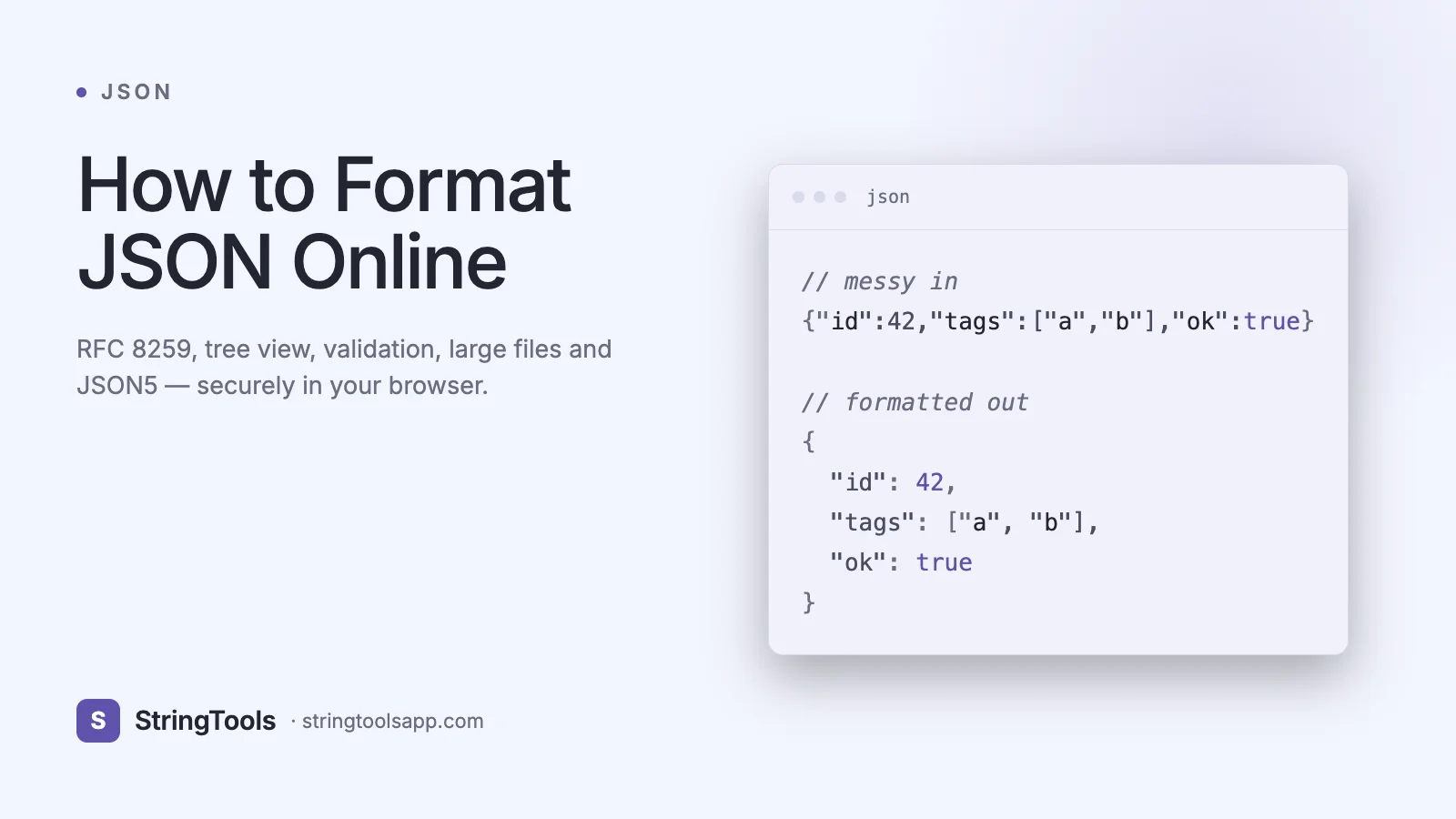
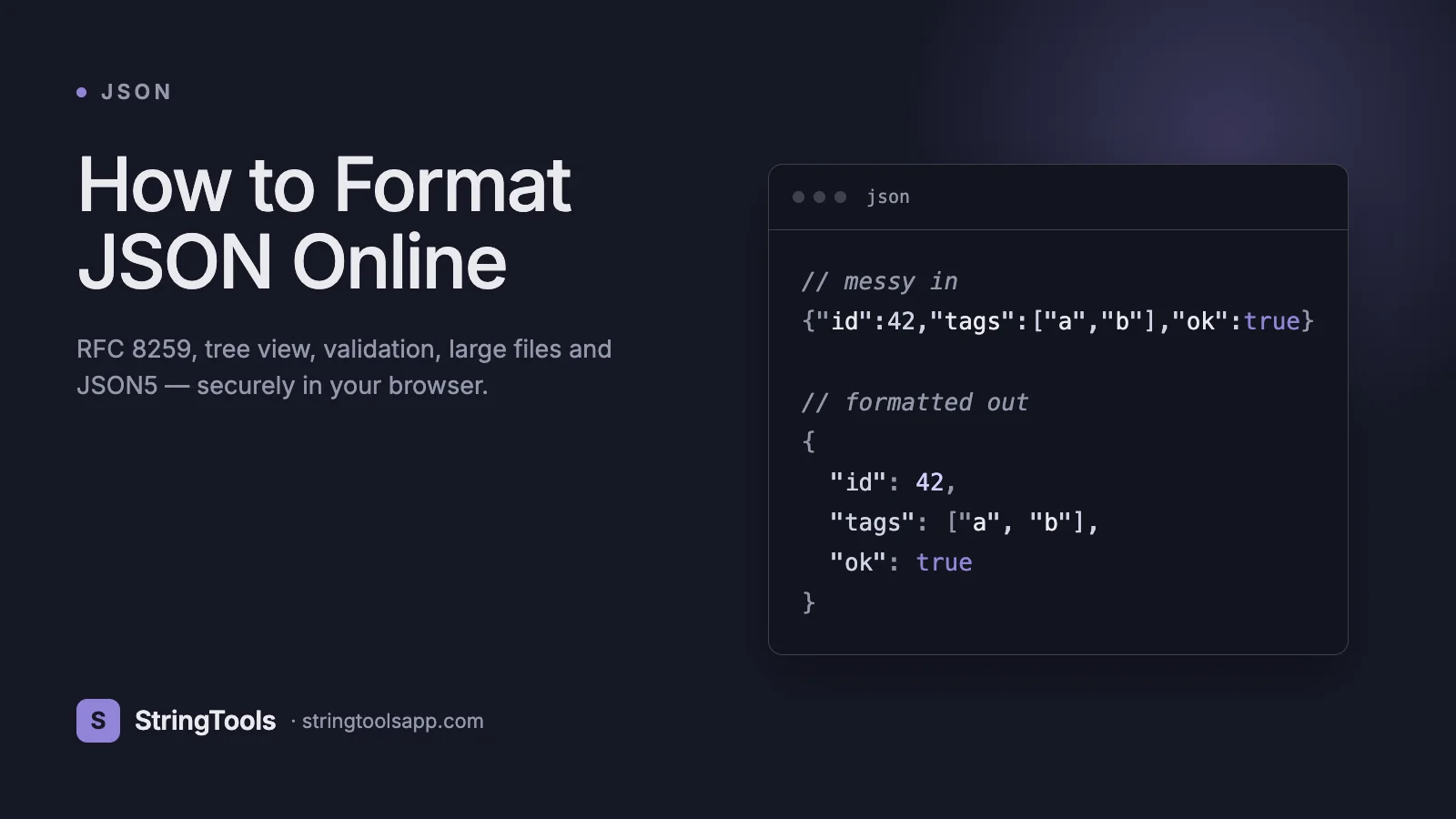
Example input (minified, 54 bytes):
{"id":42,"name":"Ada","roles":["admin","owner"],"active":true}
Same document formatted with 2-space indentation (88 bytes):
{ "id": 42, "name": "Ada", "roles": [ "admin", "owner" ], "active": true }
Both are semantically identical. JSON.parse() in any conformant parser will produce the same object graph. Formatting is purely a presentation concern — but that presentation is what makes diffing, debugging, and code review possible.
How a JSON Formatter Works Under the Hood
A JSON formatter is a two-step pipeline: parse, then serialize. Understanding both steps helps you reason about why some tools succeed where others fail.
1. Parsing. The formatter consumes the input string character by character using a recursive-descent or table-driven parser. It enforces the grammar from RFC 8259: strings must be double-quoted, object keys must be strings, trailing commas are forbidden, and numbers cannot have leading zeros (except 0 itself). If any token violates the grammar, the parser throws an error pointing to the offending line and column.
2. Serialization. Once parsed into an in-memory tree, the formatter walks that tree and emits a new string with consistent whitespace. In JavaScript, this is effectively JSON.stringify(obj, null, 2) — where 2 is the indent width.
Here is the canonical one-liner every developer should memorize:
const pretty = JSON.stringify(JSON.parse(raw), null, 2);
The third argument to JSON.stringify controls indentation: a number (1-10) means that many spaces, a string (like "\t") uses that literal indent. The second argument is a replacer function you can use to redact sensitive fields during formatting:
const safe = JSON.stringify(parsed, (key, value) => { if (key === "password" || key === "token") return "[REDACTED]"; return value; }, 2);
Good formatters also preserve key order (modern V8 preserves insertion order for string keys), handle Unicode escape sequences correctly, and detect BOM markers at the start of pasted content.
Real-World Use Cases for JSON Formatters
1. API debugging. Every REST and GraphQL developer paste raw curl output or network-tab responses into a formatter to understand the structure. When a new endpoint returns 20 nested fields, formatting is the difference between minutes and seconds of comprehension.
2. Log analysis. Structured logging systems like Datadog, Elasticsearch, and AWS CloudWatch emit JSON log lines. Formatting lets you trace a single request through dozens of log events.
3. Configuration review. Kubernetes manifests, AWS IAM policies, package.json, tsconfig.json, and Terraform state are all JSON or JSON-like. A formatter with validation catches trailing-comma errors before you break a deployment.
4. Data migration. When exporting from MongoDB, Firebase, or DynamoDB, the resulting dumps are often single-line JSON arrays with thousands of elements. Formatting makes them diffable in Git.
5. JWT inspection. JSON Web Tokens are Base64-encoded JSON. After decoding the header and payload, formatting reveals claim structure.
6. Webhook debugging. Stripe, GitHub, Slack, and Shopify all ship webhook payloads as JSON. Formatting helps you write correct handlers the first time.
Step-by-Step: Format JSON Safely in Your Browser
1. Copy the raw JSON. From a terminal, use pbcopy on macOS or clip on Windows. From a browser, right-click the network response and "Copy as Text". Avoid intermediate clipboard managers that sync to the cloud — those are the same privacy leak you're trying to avoid.
2. Paste into a client-side formatter. Confirm the tool runs entirely in the browser. Open DevTools -> Network tab and watch for outbound requests when you click Format. If anything leaves your machine, close the tab.
3. Validate before beautifying. A good formatter shows parse errors with line and column numbers. Fix trailing commas, mismatched brackets, and unquoted keys before worrying about style.
4. Choose an indent. Two spaces is the de facto standard for JavaScript and web APIs. Four spaces is common in Python-heavy shops. Tabs are fine for teams that use tab-based editors.
5. Use tree view for deeply nested payloads. Collapsing branches turns a 5,000-line payload into a navigable outline. This is where browser formatters beat terminal tools like jq for exploration.
6. Redact before sharing. If you plan to paste formatted output into a ticket or Slack thread, strip tokens, emails, and IDs using a replacer function or find/replace.
7. Copy and commit. Formatted JSON diffs cleanly in Git, which is priceless during code review.
Common Mistakes and How to Fix Them
1. Trailing commas. {"a": 1,} is valid JavaScript but invalid JSON. RFC 8259 is strict. Fix: remove the comma, or use JSON5 if your toolchain supports it.
2. Single quotes. 'key' is invalid — JSON requires double quotes for both keys and string values. Modern formatters often auto-fix this, but the underlying input is non-conformant.
3. Unquoted keys. {name: "Ada"} is JavaScript object literal syntax, not JSON. Always quote keys.
4. NaN and Infinity. These are not valid JSON values per the spec. If your backend emits them, it is producing JavaScript, not JSON. Coerce to null or a sentinel string on the server.
5. Comments. JSON does not support // or / / comments. VS Code supports "JSON with Comments" (jsonc) for config files, but pure JSON parsers will reject them.
6. Duplicate keys. RFC 8259 says behavior is undefined; most parsers keep the last value. Avoid relying on this — it's a silent data-loss bug waiting to happen.
Advanced Tips: Large Files, Streaming, and JSON5
Handling large JSON. Browsers can comfortably parse JSON up to about 100MB with JSON.parse, but rendering a pretty-printed string of that size in a contenteditable div will freeze the tab. For files beyond 10MB, use a formatter that virtualizes the output (renders only visible lines) or switch to a streaming CLI tool like jq or fx.
Streaming parsers. Libraries like stream-json (Node.js), ijson (Python), and Jackson's streaming API (Java) emit SAX-like events as tokens are read. They let you process gigabyte-scale JSON without loading the whole tree into memory — essential for data pipelines.
JSON5 vs strict JSON. JSON5 is a superset that allows comments, trailing commas, single quotes, unquoted keys, and hex numbers. It's excellent for human-authored configs but should never be emitted by an API — consumers expecting RFC 8259 will break. Use json5 (the npm package) to parse, JSON.stringify to emit.
Validation vs formatting vs beautification. These three terms get conflated. Validation checks grammar. Formatting applies whitespace rules. Beautification is colloquial for formatting with syntax highlighting. A best-in-class tool does all three and adds schema validation on top (via JSON Schema draft 2020-12).
Browser-Based vs Server-Based JSON Formatters
This is the single most important choice you make when picking a formatter.
Privacy — Browser: Data never leaves the device • Server: Payload is transmitted, potentially logged, potentially cached Speed — Browser: No network round-trip, instant • Server: Adds 50-500ms latency per format Availability — Browser: Works offline once loaded • Server: Breaks when the backend goes down Compliance — Browser: Safe for GDPR/HIPAA/PCI data • Server: Requires a DPA and likely fails audits Scale — Browser: Limited by device RAM • Server: Can handle gigabyte uploads
For 99% of developer workflows — debugging APIs, inspecting payloads, reviewing configs — browser-based is the correct choice. Server-based formatters only make sense for batch pipelines with non-sensitive data, and even then, a CLI tool like jq is usually better.
Open DevTools and verify before trusting any online tool. If the Network tab shows POST requests on format, the tool is not client-side.
Frequently Asked Questions
Is it safe to paste production JSON into an online formatter?
Only if the tool is demonstrably client-side. Open browser DevTools, go to the Network tab, clear the log, and click Format. If no outbound requests fire, the tool is safe. Assume any tool that requires sign-up, shows ads for "premium cloud features", or has a server-side architecture is logging your payloads. For sensitive data, prefer tools that publish source code or run entirely as a static site.
What's the maximum JSON size a browser formatter can handle?
In practice, 10-50MB is the comfortable ceiling for most tabs. Chrome's V8 engine can parse larger strings, but rendering a pretty-printed 100MB document as DOM text will hang the tab. For files above this range, use jq from the command line, or a formatter that implements virtual scrolling and chunked rendering.
How is JSON.stringify different from a dedicated formatter?
JSON.stringify is perfect for programmatic output but lacks error recovery, syntax highlighting, tree navigation, schema validation, and diffing. A dedicated formatter wraps JSON.parse/stringify with an editor UI, making it useful for exploration rather than just emission.
What's the difference between JSON and JSON5?
JSON5 is a relaxed superset that allows comments, trailing commas, single quotes, and unquoted identifier keys. It is aimed at hand-written config files. Standard JSON (RFC 8259) is what APIs and data interchange must use. Do not mix the two in an API contract.
Can I format JSON with jq?
Yes. Running cat file.json | jq . pretty-prints any JSON document with sorted keys disabled. jq is ideal for CI pipelines and shell scripts but lacks a visual tree view.
Does formatting change the hash of a JSON document?
Yes. Any whitespace change alters the byte content and therefore the SHA-256 or MD5 hash. If you need canonical hashing (e.g., for signing), use JCS (RFC 8785) which defines a deterministic serialization, or serialize with sorted keys and no whitespace.
Why does my formatter show "Unexpected token" at column 0?
Most often this is a UTF-8 BOM (byte-order mark) at the start of the file, or smart quotes inserted by a word processor. Save the file as UTF-8 without BOM and paste through a plain-text editor.
Conclusion: Format Locally, Debug Fearlessly
JSON formatting is a daily operation for every backend and frontend engineer, and it deserves the same security hygiene you apply to any other tool touching production data. Use a browser-based formatter so payloads never leave your machine. Validate against RFC 8259 to catch trailing commas and unquoted keys. Use tree view for nested payloads, streaming parsers for gigabyte files, and JSON5 only for human-authored configs.
Try the StringTools JSON Formatter at https://stringtoolsapp.com/json-formatter — it runs 100% in your browser, supports tree view, validates against the spec, and never transmits your data.