
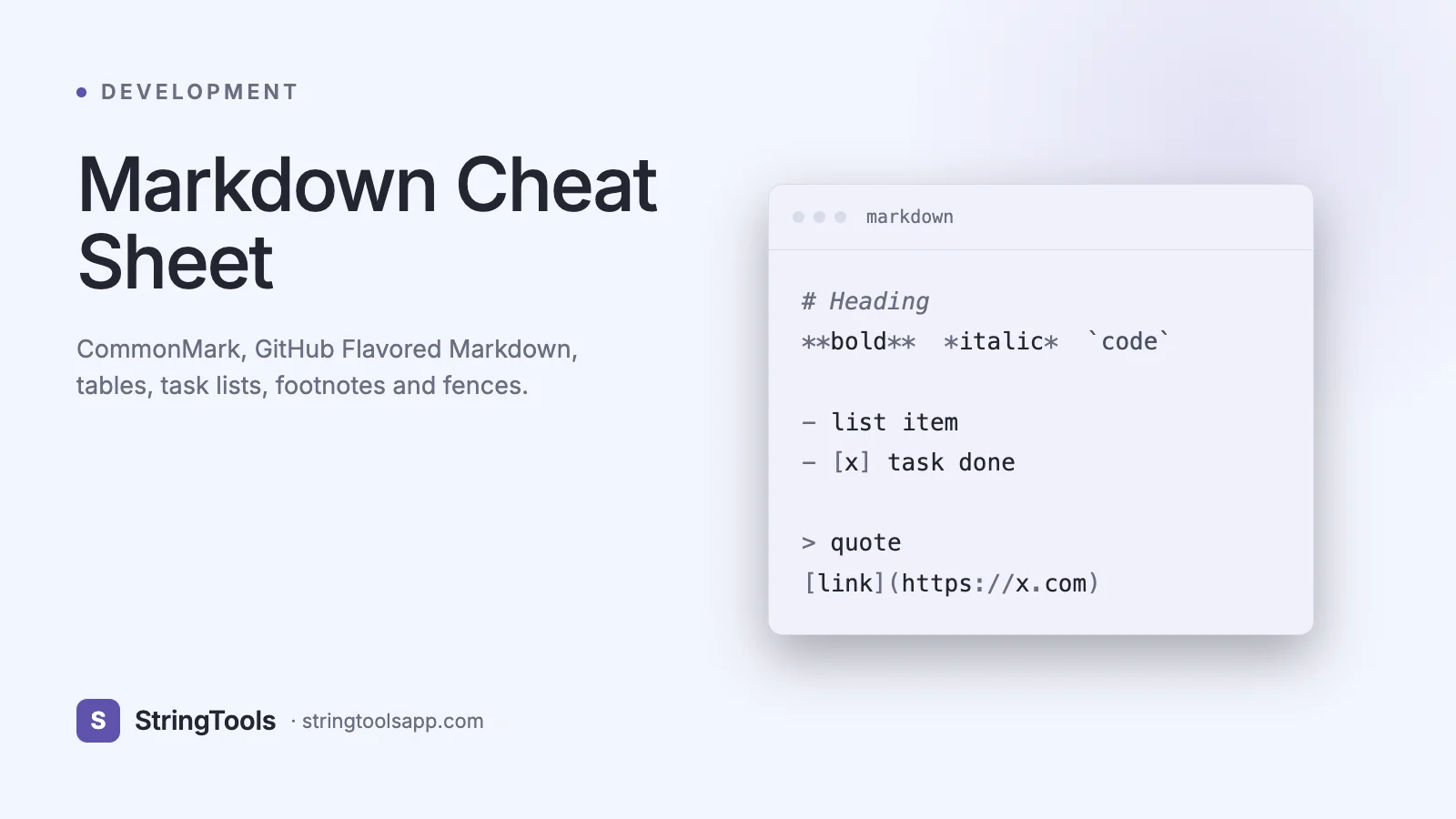
The Most Widely Used Writing Format on the Internet
Every README on GitHub, every issue and pull request description, every post on Dev.to and Medium and Reddit, every Slack and Discord message with a bold word, every Jupyter notebook, every modern CMS, every static site generator from Hugo to Next.js, and every AI chat interface that renders code blocks — all of them use Markdown. John Gruber and Aaron Swartz sketched it on a napkin in 2004 with a simple goal: text that reads well as plain text but renders beautifully as HTML.
Two decades later, Markdown is arguably the most-written text format in software, surpassing even XML and JSON in daily human authorship. GitHub alone processes billions of Markdown documents, and the CommonMark specification (finalized 2014) and GitHub Flavored Markdown (GFM) extensions now define the de facto dialect every developer needs to know.
This cheat sheet is the complete, authoritative reference: every syntax element from basic emphasis to footnotes and mermaid diagrams, with real examples, the rendering differences between GitHub/Dev.to/Reddit/Discord/Slack, the exact rules for list indentation that trip up every new user, and the three tooling ecosystems (editors, preview tools, static site generators) you'll actually use in production.
What Markdown Is and Where It Came From
Markdown is a lightweight plain-text formatting syntax that converts to HTML. The original 2004 spec by John Gruber was deliberately minimal and, unfortunately, ambiguous in several places. Multiple incompatible implementations emerged (Redcarpet, Pandoc, Marked, cmark), each interpreting edge cases differently.
CommonMark was created in 2012 by Jeff Atwood, John MacFarlane, and others to standardize the syntax with a precise specification and official test suite. Version 0.30 (2021) is the current stable spec, available at spec.commonmark.org. Most modern renderers (GitHub, Discord, Reddit, Stack Overflow, Dev.to, VS Code) are CommonMark-compliant.
GitHub Flavored Markdown (GFM) extends CommonMark with tables, task lists, strikethrough, autolinked URLs, and disallowed HTML tag filtering. GFM is documented at github.github.com/gfm and is the most important dialect to learn because it is what your README.md will be rendered as.
The philosophy: source text should be readable without rendering. A properly-written Markdown document reads naturally in a terminal or plain text editor. If your source looks like tag soup, you are doing it wrong.
Complete Basic Syntax Reference
Headings (6 levels):
# H1 Heading ## H2 Heading ### H3 Heading #### H4 Heading ##### H5 Heading ###### H6 Heading
Alternative underline syntax (H1 and H2 only):
H1 Heading ==========
H2 Heading ----------
Emphasis:
italic or _italic_ bold or __bold__ *bold italic* or ___bold italic___ ~~strikethrough~~ (GFM only)
Paragraphs and line breaks:
Paragraphs are separated by a blank line. A single newline does NOT create a break — it is treated as a space. For a hard line break, end a line with two trailing spaces, or use a backslash at the end.
Lists (unordered):
- Item one
- Item two
- Nested item (indent 2 or 4 spaces)
- Another nested
- Item three
You can use -, *, or + interchangeably. Consistency is recommended.
Lists (ordered):
1. First item 2. Second item 3. Third item
Numbers don't actually have to be correct — Markdown will re-number for you. But for readable source, use correct numbers.
Links:
Link text [Link with title](https://example.com "Hover title") [Reference-style link][ref]
[ref]: https://example.com
Images:
!Alt text 
Blockquotes:
> This is a quote. > It can span multiple lines. > > > Nested quotes work too.
Horizontal rules: three or more hyphens, asterisks, or underscores on their own line.
Inline code: use single backticks around code spans.
Code blocks (fenced) use triple backticks. Add a language tag after the opening fence (javascript, python, bash, json, etc.) for syntax highlighting.
Code blocks (indented, 4 spaces) also work but are legacy — fenced blocks are strongly preferred because they support language tags and don't require exact indentation.
GitHub Flavored Markdown Extensions
GFM adds several features beyond CommonMark that are essential for README files and documentation.
Tables:
| Column A | Column B | Column C |
|---|---|---|
| Left | Center | Right |
| Cell | Cell | Cell |
The colons in the separator row control alignment: :--- left, :---: center, ---: right. Tables must have a header row and separator.
Task lists:
- [x] Completed task
- [ ] Pending task
- [ ] Another pending
- [x] Nested completed subtask
GitHub renders these as interactive checkboxes in issues and PRs, letting readers click to toggle.
Strikethrough: use ~~double tildes~~.
Autolinked URLs: a bare https://example.com becomes a link without explicit link syntax.
Mentions and issue references: @username and #123 auto-link to users and issues within GitHub.
Emoji shortcodes: :tada: :rocket: render as emoji on GitHub, Slack, and Discord. Native Unicode emoji also work everywhere.
Advanced Features: Footnotes, Diagrams, Collapsible Sections
Footnotes (GFM):
Here is a statement with a footnote.[^1]
[^1]: This is the footnote content. It can span multiple paragraphs when indented.
Mermaid diagrams (GitHub, GitLab, Obsidian) use a fenced code block with the language tag mermaid. You can write flowchart, sequence, Gantt, class, state, ER, journey, and pie chart syntaxes — all rendered directly in the Markdown document on GitHub.
Collapsible sections via HTML:
<details> <summary>Click to expand</summary>
Hidden content here, including Markdown formatting.
</details>
Math (GitHub, many renderers): inline $E = mc^2$ and block math via $$...$$ are now rendered via MathJax/KaTeX on GitHub as of 2022.
Definition lists (Pandoc, some renderers):
Term : Definition of the term.
HTML fallback: any valid HTML is allowed inside Markdown. When the Markdown syntax doesn't cover what you need (complex tables, custom styling, embeds), drop into raw HTML. GitHub filters dangerous tags (script, iframe with restrictions) for safety.
Real-World Use Cases
1. README files. Every GitHub repo needs a README.md. It appears on the repo landing page, is indexed by search, and is the first thing potential contributors read.
2. API documentation. Tools like Docusaurus, MkDocs, VitePress, and GitBook turn directories of .md files into full documentation sites with search and navigation.
3. Static site generators. Hugo, Jekyll, Next.js (with MDX), Gatsby, Astro, and 11ty all treat Markdown as the primary authoring format.
4. Issue and PR descriptions. GitHub, GitLab, and Bitbucket all render Markdown in issues, comments, and PRs. Learning GFM makes your issues vastly more useful.
5. Notes and knowledge bases. Obsidian, Notion (partial), Logseq, and Roam all use Markdown or Markdown-like syntax for personal knowledge management.
6. Chat platforms. Slack, Discord, Microsoft Teams, and WhatsApp support subsets of Markdown (bold, _italic_, code).
7. AI prompts and outputs. Every modern LLM interface (ChatGPT, Claude, Gemini) both accepts and emits Markdown. Structured prompts with Markdown get measurably better results.
8. Jupyter notebooks. Markdown cells interleave with code cells to create executable research documents.
Rendering Differences Across Platforms
The same .md document renders differently in different places. The key differences to know:
GitHub — Full GFM + tables + task lists + mermaid + math. Most features work.
GitLab — GFM-compatible plus additional extensions (mathjax, diagrams, TOC markers).
Dev.to — CommonMark + tables + code block language tags + embed tags for tweets/YouTube.
Medium — Does NOT use Markdown. Has its own WYSIWYG, though some paste patterns work.
Reddit — CommonMark + a few subreddit-specific extensions. Tables work. Emoji shortcodes do NOT work.
Discord — Limited subset: bold, italic, __underline__, ~~strike~~, code, code blocks, > quote, ||spoiler||. No headings, no tables, no images from URLs.
Slack — Different syntax entirely: bold (single asterisk, not double), _italic_, ~strike~, code. Breaks compatibility with everything else. The quirks are historical.
Notion — Partial Markdown; pastes are converted to Notion's native block format.
Obsidian — CommonMark + GFM + [[wikilinks]] + embeds + Dataview queries.
When writing portable content, stick to CommonMark + GFM basics. For platform-specific features, document which target you're writing for.
Common Pitfalls and How to Fix Them
1. Nested list indentation. CommonMark requires nested lists to be indented with 2 spaces for - lists and 3 spaces for 1. lists (aligned with the text after the marker). Using 1 space or a tab can cause unexpected rendering. Rule: 2 spaces for nested -, 3 spaces for nested 1..
2. Blank line required before lists. A line of text immediately followed by - item will often not render as a list. Always leave a blank line between a paragraph and a list.
3. No single-line breaks. A newline in source renders as a space, not a line break. Use two trailing spaces or a backslash for hard breaks. Or just use separate paragraphs.
4. Escaping special characters. Prefix with backslash: \* \_ \[ \] \# \\. Forgetting to escape can silently swallow content or produce unintended formatting.
5. Code fence language tags. Missing or wrong language tag means no syntax highlighting. Common tags: javascript, typescript, python, bash, sh, json, yaml, sql, html, css, go, rust, java, diff.
6. HTML comments. <!-- comment --> hides content from the rendered output but remains in source. Useful for author notes or TODOs.
7. URLs with special characters. Wrap URLs containing parentheses or spaces in angle brackets: <https://en.wikipedia.org/wiki/Foo_(bar)>.
8. Tables without separator. Every GFM table MUST have a header separator row (|---|---|), or it will render as plain text.
Tooling: Editors, Previewers, Static Sites
Editors with live preview:
- VS Code with the built-in Markdown preview (Cmd+Shift+V). The "Markdown All in One" extension adds TOC, keyboard shortcuts, and math preview.
- Typora — WYSIWYG Markdown editor, formatted as you type. Paid ($15) but worth it for long-form writing.
- iA Writer — minimalist focused writing. macOS/iOS/Windows.
- Obsidian — linked-notes knowledge base built on Markdown files. Free for personal use.
- Mark Text — free, open source, similar WYSIWYG experience to Typora.
Preview and conversion tools:
- pandoc — the swiss army knife. Converts Markdown to HTML, PDF, DOCX, EPUB, LaTeX, and dozens more. pandoc input.md -o output.pdf.
- markdown-it (JS), commonmark (C/JS/Python), cmark-gfm (GitHub's fork). Use these when embedding Markdown in your own applications.
Static site generators:
- Hugo — fastest, written in Go. Best for content-heavy sites.
- Next.js with MDX — React components inside Markdown. Best for React-based docs/blogs.
- Astro — multi-framework, best for content sites with interactive islands.
- VitePress — Vite-powered, elegant default theme. Great for docs.
- Docusaurus — Meta's framework. Strong for OSS project documentation.
- MkDocs with Material theme — Python-based. Dominant in open-source technical docs.
Frequently Asked Questions
What's the difference between Markdown and CommonMark?
Markdown is the informal 2004 syntax by John Gruber. CommonMark is the 2014 standardized spec with precise rules and a test suite. Today, "Markdown" usually means "CommonMark + GFM" in practice. If you are a tooling author, target CommonMark 0.30; if you are a content author, target CommonMark + GFM and test on your primary platform.
Is Markdown better than HTML?
For human-authored prose with occasional code, yes — the source is readable and the output is consistent. For complex layout, forms, semantic markup, or anything requiring precise control, HTML is the right tool. Mix them: Markdown for content, raw HTML when you need features Markdown doesn't cover.
Can I use Markdown for email?
Yes indirectly — tools like Markdown Here (browser extension) convert Markdown to HTML before sending. Many email newsletters (e.g., Buttondown, Ghost) accept Markdown and render HTML for recipients. Direct Markdown in email clients is rare.
How do I add images in Markdown without hosting?
Three options: (1) commit the image into the repo and reference by relative path (./docs/hero.png), the best approach for README files; (2) upload by drag-and-drop to a GitHub issue or PR, which hosts the image on user-images.githubusercontent.com; (3) use a data URI (data:image/png;base64,...) for inline images — not ideal for large files.
Is Markdown case-sensitive?
Heading and text content are case-sensitive (rendered literally). Syntax tokens (code fence languages, URL schemes) are typically case-insensitive in practice, though the CommonMark spec treats them as case-sensitive. Stick to lowercase for code fence languages to be safe.
Can I use tables within lists?
Sometimes. CommonMark does not require support, GFM allows it if you maintain correct indentation. GitHub renders list-embedded tables correctly when the table rows are indented to match the list item's content column.
How do I write a \ or backtick literally?
Escape with another backslash (\\) for a literal backslash. For a literal backtick, wrap your inline code span in double backticks.
Does Markdown support footnotes?
CommonMark does not; GFM does; Pandoc does with its own syntax. Use [^1] for reference and [^1]: content for definition. GitHub renders these correctly as of 2021.
Conclusion: The Writing Format That Won
Markdown won because it strikes the right balance between readability and power. You can write a 20-page technical document without ever opening a tag, yet get semantic HTML output suitable for any publishing pipeline. You can read the source in any text editor. You can diff it in Git. You can convert it to PDF, HTML, EPUB, DOCX with one command.
Master the CommonMark basics, learn the GFM extensions that matter for your workflow (tables, task lists, fenced code blocks with language tags), and know the platform-specific quirks of wherever you publish. From there, every README, every issue, every docs page will be faster to write and better to read.
Try the StringTools Markdown Preview at https://stringtoolsapp.com — it renders CommonMark + GFM in real time, runs entirely in your browser, and shows rendered output side by side with your source.
Sources and references
Link text (example.com). Content was reviewed against these sources as of the last-updated date above; external figures and rules may change after publication.