
Why That Long String Under the Download Link Matters
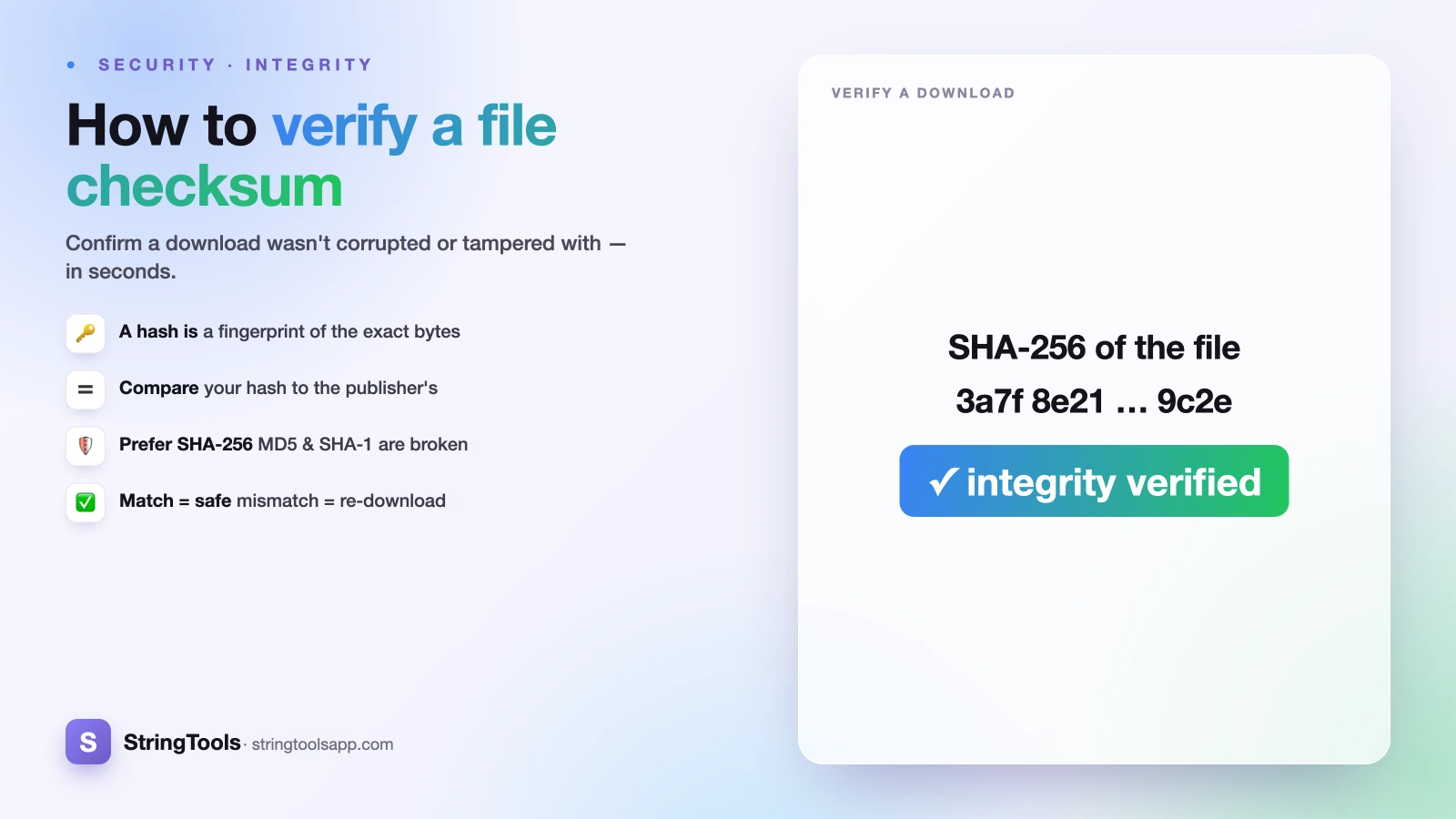
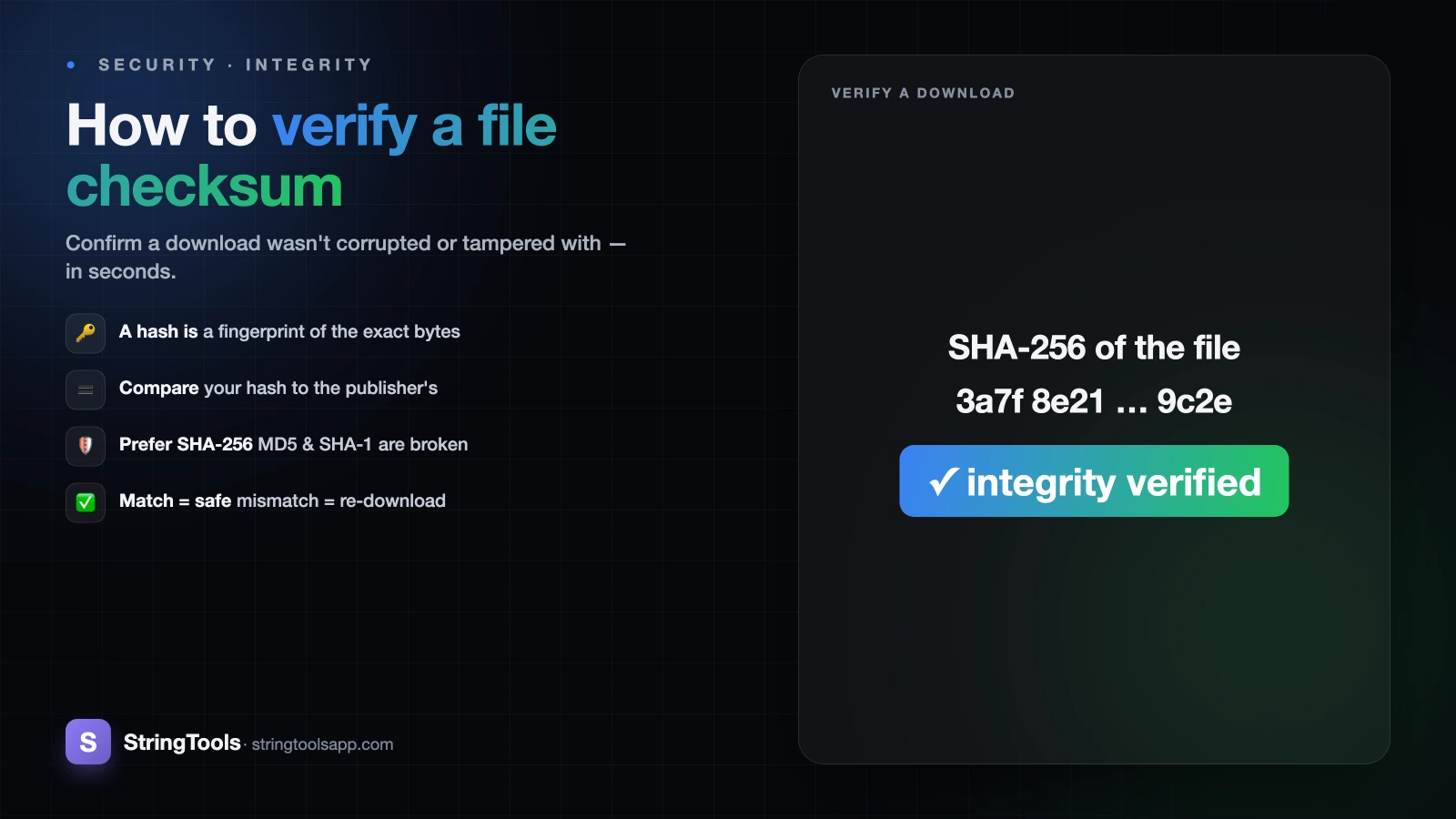
You click download on a Linux ISO, a wallet app, or a driver, and next to the link sits a wall of hexadecimal: something like 9f86d081884c7d659a2feaa0c55ad015a3bf4f1b2b0b822cd15d6c15b0f00a08. Most people ignore it. That string is a SHA-256 checksum, and it is the single fastest way to prove the file you received is byte-for-byte the file the publisher intended to ship.
Downloads fail silently more often than you'd think. A connection drops mid-transfer, a mirror serves a stale or truncated copy, or — in the worst case — an attacker swaps the file for a trojaned build. In every one of those cases, the bytes on your disk no longer match the original. Verifying the checksum catches all three before you double-click and run untrusted code.
This guide shows you exactly how to compute and compare a SHA-256 hash on macOS, Linux, and Windows, how to read the result, and — just as important — what a matching checksum does and does not prove.
What a Checksum Actually Is
A checksum (or cryptographic hash) is a fixed-length fingerprint of a file's exact bytes. Feed a hash function like SHA-256 any input — a 3 KB text file or a 4 GB disk image — and it always returns a 256-bit result, written as 64 hexadecimal characters. The output length never changes; the input size is irrelevant.
The property that makes it useful for verification is sensitivity. Flip a single bit anywhere in the file — change one comma, drop one byte, corrupt one packet — and the resulting hash looks completely different, not slightly different. There is no partial similarity. This is often called the avalanche effect.
Here is the same short string hashed twice, with one letter changed:
SHA-256("hello") = 2cf24dba5fb0a30e26e83b2ac5b9e29e1b161e5c1fa7425e73043362938b9824
SHA-256("Hello") = 185f8db32271fe25f561a6fc938b2e264306ec304eda518007d1764826381969
Two hashes with nothing in common, from a one-character difference. That total, unpredictable change is what makes matching checksums meaningful — a match is not a coincidence. For a deeper look at how these functions work internally, see hash functions explained.
The Core Idea: Compute, Then Compare
Verifying a download is a two-step process, and neither step is complicated.
First, the publisher computes the SHA-256 hash of the official file and posts that value somewhere you can read it — on the download page, in a SHA256SUMS file, or in release notes.
Second, after you download, you compute the SHA-256 hash of the copy on your own disk and compare it to the published value. If the two strings are identical, your file is intact. If even one character differs, something changed in transit and you should not trust or run the file.
That is the entire concept. Everything below is just the specific command for your operating system. One practical note before you start: comparison is case-insensitive. Some tools print hashes in lowercase, others in uppercase, and A3F and a3f represent the same value. Compare the characters, not the capitalization.
Computing SHA-256 on macOS and Linux
Both macOS and Linux ship with command-line tools built in — nothing to install.
On macOS, open Terminal and run:
shasum -a 256 /path/to/yourfile.dmg
The -a 256 flag selects the SHA-256 algorithm. It prints the 64-character hash followed by the filename.
On most Linux distributions, the idiomatic command is:
sha256sum /path/to/yourfile.iso
This outputs the same hash format. (shasum -a 256 also works on Linux if you prefer one command across both systems.)
To compare, read the published hash and check it against your output. You can eyeball it, but for a long ISO checksum it's safer to let the shell do it. On Linux, if the publisher provides a SHA256SUMS file, run:
sha256sum -c SHA256SUMS
That reads the expected hashes from the file, recomputes them from your local copies, and prints OK next to each filename that matches — or FAILED if one doesn't. It's the least error-prone way to verify, because no human is squinting at 64 characters.
Computing SHA-256 on Windows
Windows has a built-in tool too, so you don't need to download anything to verify a download — which would be a bit of a chicken-and-egg problem anyway.
In Command Prompt or PowerShell, run:
certutil -hashfile C:\path\to\yourfile.exe SHA256
certutil prints the SHA-256 hash on its own line, usually in uppercase and sometimes with spaces between byte pairs depending on your Windows version. Ignore the spacing and capitalization when you compare.
PowerShell offers a cleaner alternative that many people prefer:
Get-FileHash C:\path\to\yourfile.exe -Algorithm SHA256
This returns a tidy table with the algorithm, the hash, and the path. SHA256 is actually the default algorithm for Get-FileHash, so you can even omit the flag. Copy the Hash value and compare it to the publisher's — again, case doesn't matter.
The No-Install Option: Hash It in Your Browser
Command lines aren't for everyone, and sometimes you're on a locked-down machine where you'd rather not open a terminal. A browser-based hasher solves this: you paste text or drop the file in, and it computes the SHA-256 hash locally.
The important word is locally. A well-built tool does the hashing entirely in your browser using the built-in Web Crypto API, so the file's bytes never leave your device — nothing is uploaded to a server. That keeps a sensitive download (a keystore, a private backup, a signed installer) on your own machine while you check it. Always confirm a tool works client-side before dropping anything private into it.
Our hash generator runs this way: entirely in the browser, no upload, with SHA-256 alongside MD5, SHA-1, and SHA-512. Compute the hash, then compare it to the value the publisher listed. It's the fastest route if you just need to check one file and don't want to memorize command syntax.
Reading the Result: Match, Mismatch, and What Each Means
A match means the file on your disk is byte-for-byte identical to the one the publisher hashed. It was not corrupted in transit and was not altered after the publisher generated the checksum. You can proceed.
A mismatch means the bytes differ — full stop. The most common cause is an incomplete or corrupted download, and the fix is simple: delete the file and download it again, ideally from a different mirror. If a fresh download still doesn't match the published value, stop. Do not run it. A persistent mismatch can mean the file was tampered with, the download server is compromised, or the mirror is serving a bad copy. Treat it as untrusted.
One subtlety worth naming: a checksum only helps if you trust where the checksum itself came from. If an attacker can replace the file, they may also be able to replace the hash printed next to it. That's why the checksum should come over HTTPS from the publisher's own site — and why, for high-stakes software, publishers also sign their releases (more on that next).
SHA-256 vs MD5/SHA-1, and What Checksums Can't Prove
You'll still see MD5 and SHA-1 checksums in the wild. For detecting accidental corruption — a dropped packet, a truncated file — they work fine, because random damage is exceedingly unlikely to produce a matching hash. But both are cryptographically broken: researchers can deliberately craft two different files that share the same MD5 or SHA-1 hash (a collision). That means a determined attacker could produce a malicious file that matches a legitimate MD5 checksum. For anything security-sensitive, prefer SHA-256, which has no known practical collision attack.
Just as important, understand what a checksum does not prove. A matching SHA-256 hash confirms integrity — that the file is exactly what the publisher hashed. It says nothing about whether the publisher is trustworthy. A hash from a shady website just proves you downloaded that site's file faithfully. Real trust comes from layering: a checksum for integrity, HTTPS and a reputable source for authenticity, and a cryptographic signature (like GPG or a code-signing certificate) to prove the publisher genuinely produced the file. Verify the checksum every time — but don't mistake integrity for trustworthiness.
Ready to check a download? Drop your file into our free, client-side hash generator, compute the SHA-256 hash, and compare it to the publisher's value. Nothing gets uploaded — the whole check happens in your browser.
Frequently Asked Questions
Does the case of the checksum matter when comparing?
No. Hexadecimal hashes are case-insensitive, so A3F9 and a3f9 represent the exact same value. Some tools print lowercase (shasum, sha256sum) and others uppercase (certutil), but that difference is cosmetic. Compare the characters themselves, ignoring capitalization and any spaces some tools insert between byte pairs.
What should I do if the checksum doesn't match?
First, re-download the file — a mismatch is most often caused by an incomplete or corrupted transfer, so a fresh copy usually fixes it. Try a different mirror if one is offered. If the checksum still doesn't match after a clean download, do not run the file. A persistent mismatch can indicate tampering or a compromised source, so treat it as untrusted.
Is SHA-256 better than MD5 for verifying downloads?
For catching accidental corruption, both work. But MD5 and SHA-1 are cryptographically broken — attackers can craft two different files with the same hash, so a malicious file could match a legitimate MD5 checksum. SHA-256 has no known practical collision attack, making it the safer choice for any security-sensitive download. Prefer SHA-256 whenever a publisher offers it.
Does a matching checksum mean the file is safe to run?
Not by itself. A matching SHA-256 hash proves integrity — the file is byte-for-byte what the publisher hashed — but it says nothing about whether the publisher is trustworthy. A hash from a sketchy site just confirms you downloaded that site's file faithfully. Combine the checksum with HTTPS, a reputable source, and a cryptographic signature to establish real trust.
Do I need to install anything to compute a SHA-256 hash?
No. macOS and Linux include shasum -a 256 and sha256sum out of the box, and Windows ships with certutil -hashfile file SHA256 plus PowerShell's Get-FileHash. If you'd rather avoid the command line entirely, a client-side browser tool like our hash generator computes SHA-256 locally without uploading your file anywhere.