
Stop reading your WiFi password out loud
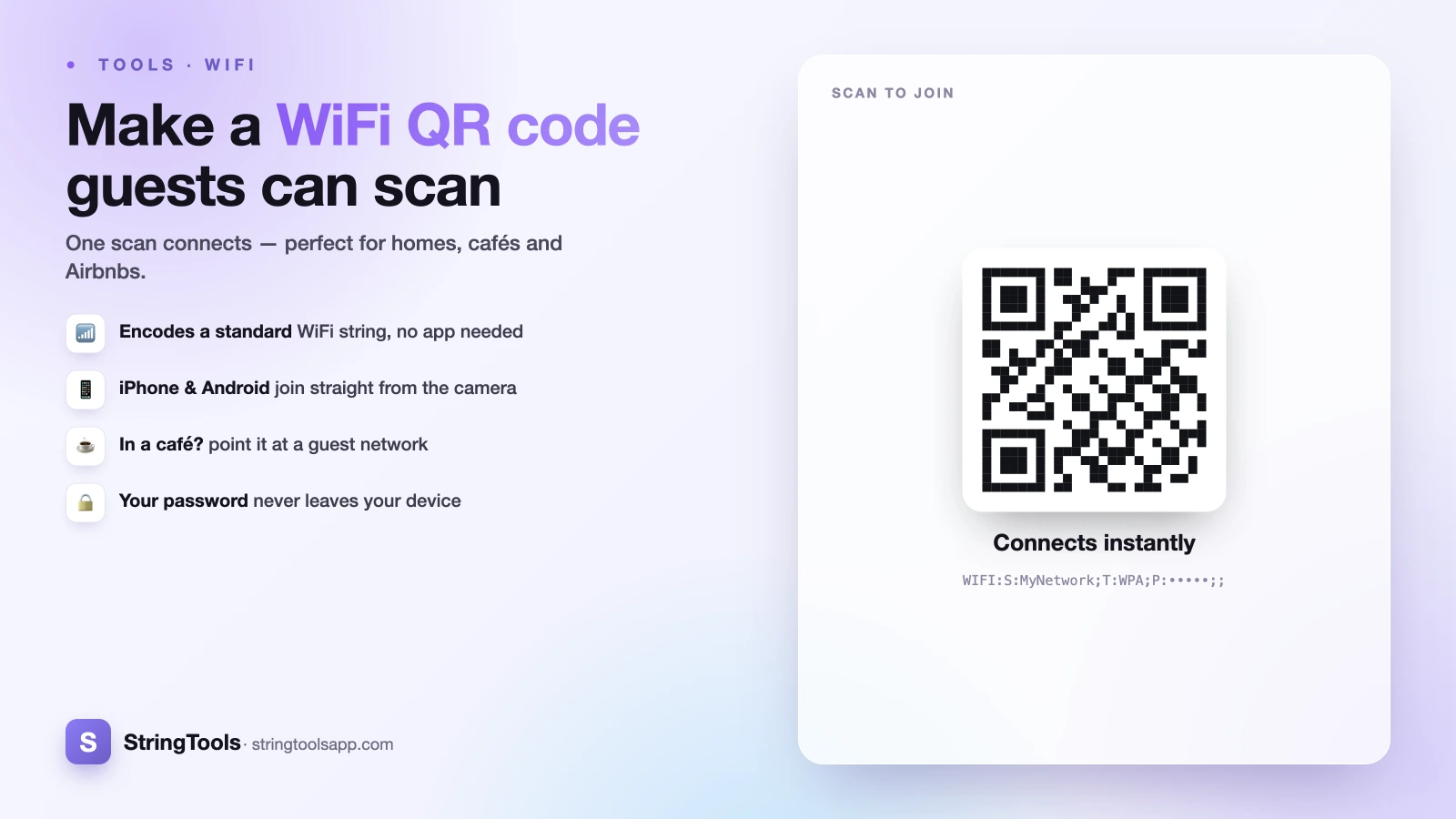
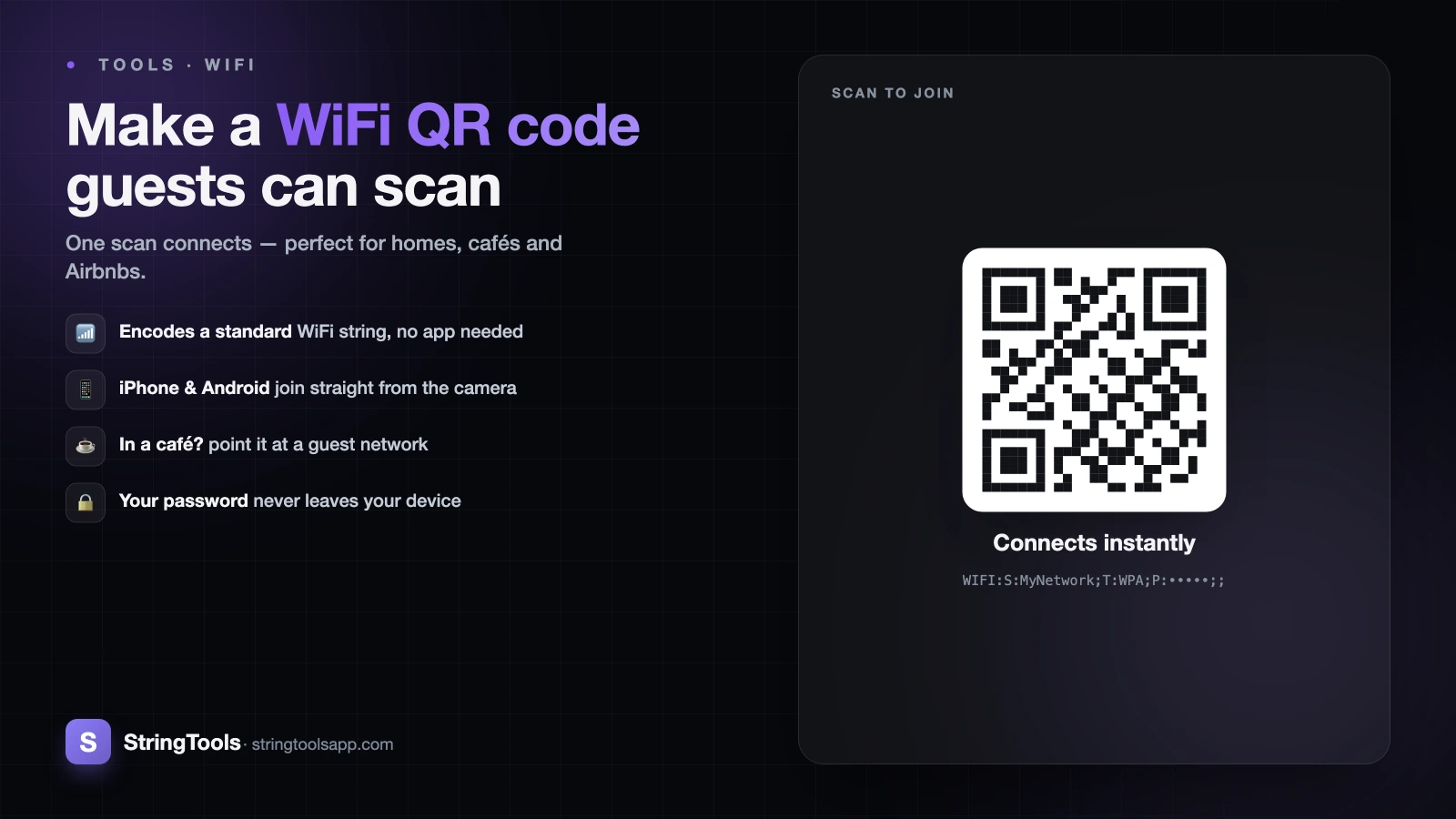
Every guest, every time: "What's the WiFi?" You spell out a 16-character password, they mistype it twice, and someone asks whether that's a capital I or a lowercase L. A WiFi QR code ends that ritual. You print one small square, stick it on the fridge or the café counter, and people point their phone camera at it. Their phone reads the network name and password and offers a one-tap "Join" button.
This works because of a quiet standard that phones have supported for years. A WiFi QR code isn't a link or an app; it's a short line of text formatted in a way iPhones and Android phones already know how to interpret. In this guide you'll build one in about two minutes, learn where to place it, and understand the one security trade-off that matters most for cafés and shops.
The best part for anyone nervous about privacy: when you generate the code in your browser with a client-side tool, your password is turned into the QR image on your own device. It never gets uploaded to a server.
What a WiFi QR code actually contains
A QR code is just a way to store text as a scannable image. For WiFi, phones look for a specific pattern. The encoded text looks like this:
WIFI:S:MyNetworkName;T:WPA;P:MyPassword123;;
Each part has a job. S is the SSID, your network's name exactly as it appears in the WiFi list. T is the security type: use WPA for almost everything modern (it covers WPA, WPA2, and WPA3 networks), or use nopass for an open network with no password. P is the password. The double semicolon at the end signals the end of the string.
Two details trip people up. First, the SSID and password are case-sensitive: "CafeGuest" and "cafeguest" are different networks, and a capital letter in the password must be typed exactly. Second, if your network is hidden (it doesn't broadcast its name), you add H:true so the phone knows to search for it: WIFI:S:MyNetwork;T:WPA;P:MyPassword123;H:true;;. You don't need to memorize this format. A good QR code generator builds the string for you from simple fields.
Make your WiFi QR code in five steps
Here's the whole process using a browser-based generator.
1. Find your exact network details. Open your phone or router settings and copy the SSID and password precisely, matching every capital letter, space, and symbol.
2. Open the QR code generator and choose the WiFi option. If your tool only offers a plain text field, paste the full WIFI:S:...;; string described above.
3. Enter the network name, the password, and the security type (WPA for a normal home or business network, nopass if there's no password). Tick the hidden-network box only if your SSID doesn't broadcast.
4. Generate the code and test it before you print. Point your own phone's camera at the screen and confirm it offers to join and actually connects. Testing now saves you reprinting later.
5. Download the image as a PNG or SVG. Choose SVG if you plan to print it large, because it stays sharp at any size.
That's it. One square now carries everything a guest needs to get online.
Printing and placing it so people actually use it
A QR code only helps if guests can find and scan it comfortably. A few practical rules make a big difference.
Size matters more than you'd think. A rough guide is that the printed code should be at least about one-tenth the distance a person scans from. A code on a fridge that people scan from 30 cm away can be small, maybe 3 cm across. A code on a café wall scanned from a metre away should be closer to 10 cm. When in doubt, print it bigger.
Keep strong contrast and a clean border. Dark code on a light background scans best; avoid printing it over a busy photo. Leave a small white margin (the "quiet zone") around the square so the camera can locate its edges.
Add a human label. Print the network name and a line like "Scan for WiFi" next to the code. Some older phones need the camera app opened manually, and a label reassures guests what they're scanning. For Airbnbs and offices, laminate the card or use a small stand so it survives spills and handling. In a café, tent cards on each table beat a single sign by the door.
The security trade-off nobody mentions
Here's the honest part. A WiFi QR code is a convenience feature, not a security feature. Anyone who can see the code and scan it gets onto that network, and once they're connected they share it with every other device on it. The QR code doesn't add protection; it just skips the typing.
For a home, that's usually fine. The people scanning it are already in your living room. For a café, shop, Airbnb, or office, treat it differently: put guests on a separate guest network, not the one your point-of-sale system, work laptops, or personal devices use. Most modern routers let you create a guest SSID in a few clicks. Generate the QR code for that guest network only.
A guest network keeps strangers isolated from your important devices and lets you change its password whenever you like without disrupting your own gear. If you ever suspect the code has been over-shared, rotate the guest password and print a fresh code. And remember that a QR code can be photographed: don't post your primary home network's code where the public can see it through a window.
Passwords with special characters and other gotchas
WiFi passwords often contain symbols, and a few of them have special meaning inside the WIFI: string. Semicolons, colons, commas, backslashes, and quotation marks in the SSID or password should be escaped with a backslash so the phone reads them literally. For example, a password of Pa;ss\word becomes Pa\;ss\\word in the raw string.
The good news: a well-built generator handles this escaping automatically when you type your password into its field, so you rarely touch the raw format. This is one more reason to use a proper WiFi option rather than hand-typing the string.
A couple of other things to check. Emoji and unusual Unicode characters in a network name can behave inconsistently across phones, so keep SSIDs to standard characters when you can. If a scan fails to connect, the usual culprits are a mistyped password, the wrong security type, or a hidden network without H:true. Re-check those three before assuming the code is broken, and always test with a second phone if the first won't cooperate.
Why generating it in your browser keeps you private
Your WiFi password is a genuine secret. It's worth asking where it goes when you create a code. Many online generators send whatever you type to their servers to build the image, which means your password briefly travels across the internet to a company you don't know.
A client-side tool works differently. The whole conversion from text to QR image happens in your browser using your device's own processor. Nothing is uploaded, so your network name and password never leave your computer or phone. For a piece of information that unlocks your home or business network, that distinction is worth caring about.
This matters for QR codes generally, not just WiFi. If you want the deeper background on how QR codes are stored and whether the data lives in the code itself or on someone's server, read our explainer on static vs dynamic QR codes. A WiFi QR code is a static code: the password is baked into the image, which is exactly why keeping the generation on your own device is the safe choice.
Print one today and retire the sticky note
A WiFi QR code is one of those small upgrades that quietly improves every visit. Guests connect in seconds, you stop reciting passwords, and a laminated card looks far tidier than a marker scrawl on the router. For homes it's pure convenience; for cafés, Airbnbs, and offices, pair it with a dedicated guest network and you get convenience plus a cleaner security boundary.
The whole thing takes about two minutes and costs nothing but the paper. Open the free, privacy-first QR code generator, choose WiFi, enter your network details, test it on your phone, and print. Your password stays on your device, your guests get online without a word, and you never have to spell out "capital I, lowercase L" again.
Frequently Asked Questions
Do guests need to download an app to scan a WiFi QR code?
No. On iPhones running iOS 11 or later and on most modern Android phones, the built-in camera app reads WiFi QR codes automatically. Guests just open the camera, point it at the code, and tap the "Join" prompt that appears. A few older phones may need a separate QR scanner app, which is why adding a short "Scan for WiFi" label helps.
Is a WiFi QR code safe to put on display?
It's convenient but not a security feature. Anyone who scans it joins your network. For a home among trusted guests that's fine. For cafés, shops, Airbnbs, or offices, create a separate guest network and generate the code for that one only, keeping strangers away from your work devices, point-of-sale systems, and personal gear.
Will my WiFi password be uploaded anywhere when I make the code?
It depends on the tool. Many generators send your input to their servers. A client-side generator like ours builds the QR image entirely in your browser, so the network name and password never leave your device. For a secret that unlocks your network, choosing a tool that works locally is worth the small extra care.
How do I make a QR code for a hidden network?
A hidden network doesn't broadcast its name, so the phone needs an extra instruction. Add H:true to the WiFi string, making it WIFI:S:YourName;T:WPA;P:YourPassword;H:true;;. Most generators offer a "hidden network" checkbox that adds this for you. Without it, phones can't find the network even with the correct name and password.
My WiFi QR code won't connect. What's wrong?
Three things cause most failures. First, a mistyped password: SSIDs and passwords are case-sensitive, so match every capital letter. Second, the wrong security type: use WPA for modern networks or nopass for open ones. Third, a hidden network missing the H:true flag. Re-check those, regenerate, and test with a second phone before reprinting.