
"The message could not be sent" — the 25 MB wall
You attach the signed contract, hit send, and the email bounces back: attachment too large. It is one of the most common, most frustrating roadblocks in day-to-day work, and it almost always happens at the worst moment — right before a deadline.
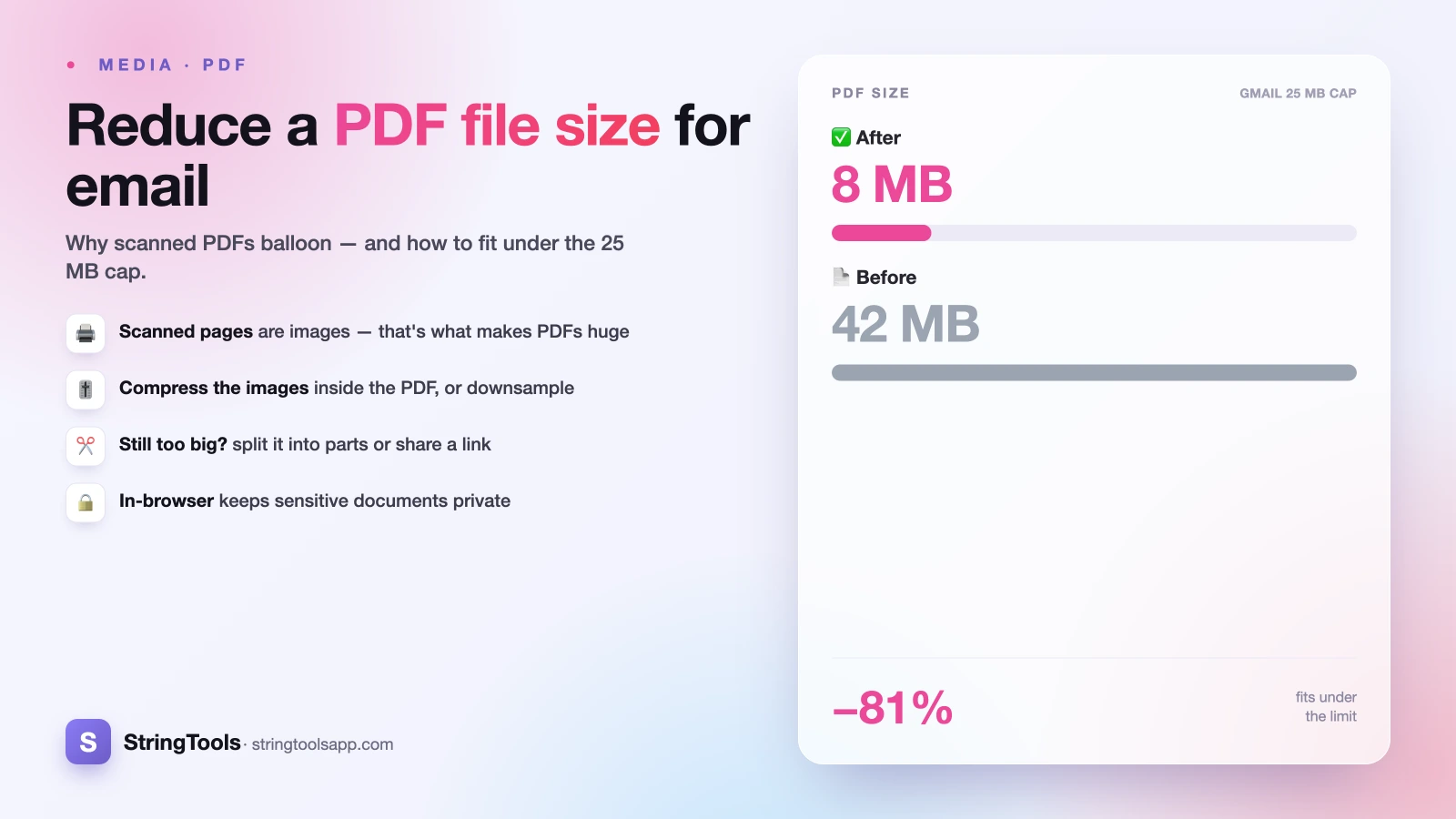
The good news is that a bloated PDF is a solvable problem, and you rarely need expensive software to fix it. In most cases the file is large for one specific reason, and once you know what that reason is, getting under the limit takes a couple of minutes. This guide walks through the real attachment limits you are fighting against, why PDFs get so heavy, and the exact levers that bring the size down — with a worked example that takes a 40 MB scanned document under 10 MB.
Know your limit: Gmail, Outlook, and corporate servers
Before you compress anything, it helps to know the actual ceiling you need to clear. The limit is set by the email provider, not by your device.
Gmail caps attachments at 25 MB. If your file is larger, Gmail automatically offers to upload it to Google Drive and send a link instead. Outlook.com and Microsoft 365 typically allow around 20–25 MB, though the default for many desktop Outlook installations is lower. Corporate and business mail servers are the strictest — many enforce a 10 MB limit (some as low as 5 MB), and the cap applies to the total message size, including the encoding overhead.
A critical detail people miss: the limit counts the message after encoding, which inflates attachments by roughly 33%. So a 24 MB PDF can push a message past Gmail's 25 MB ceiling. To be safe, aim comfortably below the stated number — treat 25 MB as "stay under ~20 MB" and 10 MB as "stay under ~8 MB."
Why PDFs get huge: it is almost always the images
PDFs that hold nothing but text are tiny — a 50-page text report is often under 1 MB. The moment a PDF balloons to 20, 40, or 80 MB, the culprit is nearly always embedded images, and there are two common sources.
The first is high-resolution photos or graphics dropped into a document. A single phone photo can be 4–8 MB on its own; put a dozen in a brochure and the file is enormous before you have written a word.
The second, and by far the biggest offender, is the scanned document. When you scan a page on an office printer or a phone app, each page is saved as a full-resolution image — not as text. A single color scan at 600 DPI can be several megabytes per page. That is why a 30-page scanned agreement routinely lands at 40 MB or more, while the same 30 pages typed in Word would be a fraction of that.
Scanned PDFs vs. text PDFs: know which one you have
This distinction decides everything about how you compress. Here is a quick test: open the PDF and try to select a sentence with your cursor. If the text highlights and you can copy it, you have a text-based PDF. If nothing highlights — the page behaves like a photo and you can only select rectangular blocks — you have a scanned (image-based) PDF.
Text-based PDFs are already efficient. If one is large, it is because of a few embedded pictures or fonts, and removing or downsampling those elements shrinks it fast with no loss to the text.
Scanned PDFs are big because every page is an image, so the only real lever is reducing the resolution and quality of those page images. This is where the largest savings live — a scan compressed sensibly can drop 70–90% in size. It is also where you have to be careful, which we will cover below.
Four levers to get under the limit
There is no single magic button — you have four practical levers, and the right one depends on your file.
1. Compress and downsample the images inside the PDF. This is the workhorse. Downsampling lowers the resolution of embedded images (say, from 600 DPI to 150 DPI) and re-encodes them at a smaller quality setting. For screen reading and standard printing, 150 DPI is plenty. This is the fix that turns a 40 MB scan into a few megabytes.
2. Remove unnecessary elements. Some PDFs carry baggage — duplicate embedded fonts, form metadata, hidden layers, or attachments. Stripping these can help, though the savings are modest unless the file was built carelessly.
3. Split the PDF into parts. If a 30 MB report genuinely needs full quality, send it as "Part 1 of 2" and "Part 2 of 2." Splitting keeps every page pristine and is the honest choice when compression would ruin readability.
4. Send a link instead. For anything that refuses to shrink acceptably, upload it to Google Drive, OneDrive, or Dropbox and paste a share link. This sidesteps the size limit entirely and is the standard approach for files over ~50 MB.
Worked example: a 40 MB scanned contract under 10 MB
Say your accountant sends back a 25-page scanned agreement. It arrives as a 40 MB PDF — far over your company's 10 MB mail limit — because each page was scanned in color at 600 DPI.
Here is the math. At 600 DPI, each page is roughly 1.6 MB. Downsample those page images to 150 DPI — one quarter of the linear resolution, so about one-sixteenth of the pixels — and each page drops to well under 0.5 MB. Apply moderate JPEG compression on top, and the whole document lands around 6–8 MB. That clears the 10 MB corporate limit with room to spare, and at 150 DPI the text is still crisp on screen and prints cleanly.
If a color scan still runs large, converting it to grayscale often halves the size again — perfect for documents where color adds nothing (most contracts, invoices, and forms). You can do this entire process in your browser: open PDF tools, load the file, choose a compression level, and download the smaller version.
The honest trade-off: size vs. clarity
Compression is not free — it trades file size for image quality, and it is important to be straight about that. Push a scan too hard and fine print gets fuzzy, faint signatures fade, and small text on a diagram can become hard to read. There is no setting that makes a file dramatically smaller and keeps every pixel; something gives.
The practical rule: match the quality to the purpose. For a document someone will read on a screen, aggressive compression (150 DPI, grayscale) is fine. For a legal document that may be printed, magnified, or used as evidence, compress gently or split the file instead — do not sacrifice a signature's legibility to save two megabytes.
Always open the compressed PDF and check the smallest text before you send it. If it reads clearly, you are done. If it does not, back off the compression a notch, split the file, or send a link. The goal is a file that is small enough to send and good enough to use.
Do it privately, in your browser
Sensitive PDFs — contracts, tax returns, medical records, signed forms — should not be uploaded to a random website just to make them smaller. Many free "compress PDF" services process your file on their servers, which means your confidential document sits on a stranger's machine.
Our PDF tools run entirely in your browser. The file never leaves your device — the compression happens locally, on your own computer, so there is nothing uploaded and nothing stored on a server. That makes it a safe fit for exactly the private documents you most need to email.
The same privacy-first approach works for images too: if you are shrinking photos before dropping them into a document, see how to compress an image under 100 KB. When your PDF is ready, head to PDF tools, compress it under your email's limit, and send it with confidence.
Frequently Asked Questions
What is the maximum PDF size I can email?
It depends on your provider. Gmail allows 25 MB, Outlook and Microsoft 365 roughly 20–25 MB, and many corporate mail servers cap out at 10 MB or even 5 MB. Because encoding adds about 33% overhead, aim comfortably below the stated limit — treat a 25 MB cap as "stay under 20 MB" to avoid a bounce-back.
Why is my PDF so large in the first place?
Almost always because of embedded images. A pure-text PDF is tiny, but high-resolution photos and — especially — scanned pages save each page as a full-resolution image. A single color scan at 600 DPI can be several megabytes per page, so a scanned multi-page document quickly reaches 40 MB or more.
Will compressing a PDF ruin its quality?
Compression trades size for image clarity, so heavy compression can make fine print fuzzy or fade faint signatures. Moderate compression (around 150 DPI) is fine for on-screen reading and normal printing. For legal documents that may be enlarged or printed, compress gently or split the file, and always check the smallest text before sending.
How do I email a PDF that is too big to compress?
If a file must keep full quality, split it into parts and send them as separate emails, or upload it to Google Drive, OneDrive, or Dropbox and share a link instead. Cloud links sidestep attachment limits entirely and are the standard approach for files larger than about 50 MB.
Is it safe to compress a confidential PDF online?
Many free tools upload your file to their servers, which is risky for sensitive documents. Choose a tool that processes files in your browser instead. Our PDF tools compress entirely on your own device — nothing is uploaded or stored — making them a safe choice for contracts, tax returns, and other private files.