
The 10-second answer (and why it's not that simple)
You have a photo, a logo, or a screenshot, and four formats are shouting for attention: JPEG, PNG, WebP, and AVIF. Pick wrong and you either ship a blurry mess or a page that takes three seconds to load on a phone. Pick right and nobody notices, which is exactly the goal.
Here is the short version. For photographs on the web, reach for WebP first and keep a JPEG fallback if you support very old software. For logos, icons, screenshots, and anything with sharp edges or transparency, use PNG or WebP. When you want the smallest possible file and your audience is on modern browsers, AVIF usually wins. When you need something that opens literally anywhere with zero surprises, plain JPEG or PNG is still the safe bet.
That is the answer most people need. But "it depends" is doing a lot of work in that paragraph, so the rest of this guide unpacks each format honestly, shows what the size differences actually look like, and gives you a decision map you can follow without second-guessing.
JPEG: the universal workhorse for photos
JPEG (sometimes written JPG) has been around since the early 1990s, and it is still the default for a reason. It is a lossy format, meaning it throws away image data your eye is unlikely to miss in order to shrink the file. That trade works beautifully for photographs, where smooth gradients and complex detail hide the compression.
Its biggest strength is compatibility. Every browser, phone, camera, printer, and image editor on Earth reads JPEG without complaint. If you email a photo to a stranger or upload it to an ancient content system, JPEG just works.
The limitations are real, though. JPEG does not support transparency, so it is wrong for logos that need to sit on a colored background. It also handles sharp edges poorly. Save a screenshot full of crisp text as JPEG and you will see fuzzy "halos" around the letters, a compression artifact called ringing. And because it is lossy, every time you re-save a JPEG it degrades a little more, like photocopying a photocopy.
Use JPEG for: photographs where maximum compatibility matters, or as a fallback for the newer formats below.
PNG: sharp graphics, screenshots, and transparency
PNG is the counterpart to JPEG. It is lossless, so it preserves every single pixel exactly as you saved it, no artifacts and no generation loss no matter how many times you edit and re-save. That fidelity makes it the right tool for images with hard edges and flat colors: logos, icons, line art, diagrams, and screenshots of text or user interfaces.
PNG's other headline feature is alpha transparency. It supports smooth, partial transparency, so a logo can have soft anti-aliased edges that blend cleanly onto any background. JPEG simply cannot do this.
The cost of all that fidelity is size. A photograph saved as PNG can easily be five to ten times larger than the same photo as a good JPEG, because lossless compression has far less room to work on complex, noisy image data. That is why you should almost never save a photo as PNG for the web.
Use PNG for: screenshots, logos, icons, illustrations with few colors, and anything needing crisp edges or transparency where you can't yet rely on WebP.
WebP: the modern default that does both jobs
WebP, developed by Google, is the format that quietly replaced a lot of JPEG and PNG usage. Its trick is versatility: it offers both a lossy mode (a smarter alternative to JPEG) and a lossless mode (an alternative to PNG), plus transparency in both, plus animation like a GIF but far smaller.
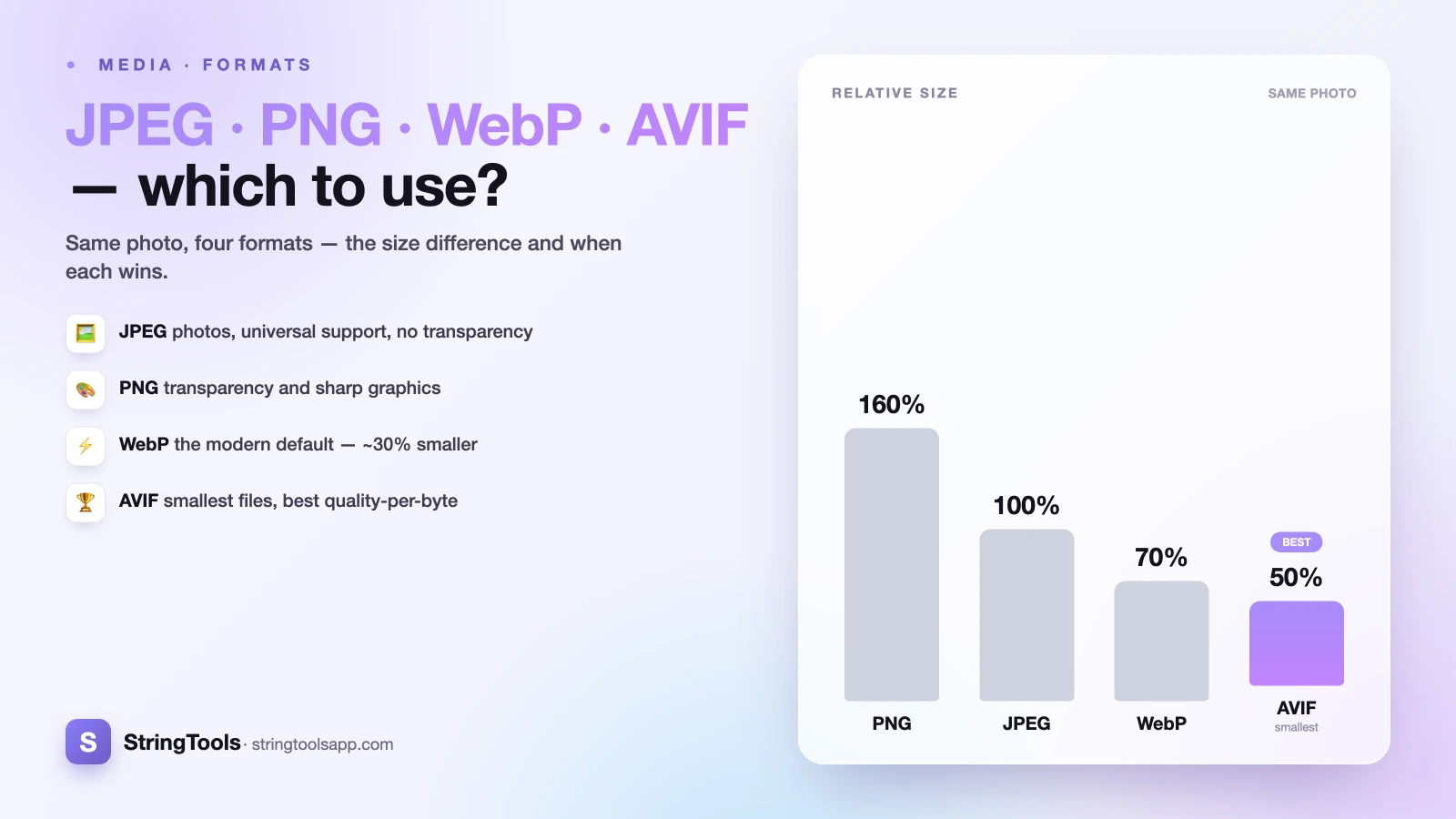
The practical win is size. At a similar visual quality, a lossy WebP photo is typically around 25 to 35 percent smaller than the equivalent JPEG. For lossless graphics, WebP often beats PNG by a meaningful margin too. Smaller files mean faster pages, less bandwidth, and happier mobile visitors, which is why WebP has become a standard part of web performance work.
Compatibility is no longer a real concern. As of 2026, every mainstream browser (Chrome, Firefox, Safari, Edge) supports WebP, and it has for years. The main places you still hit friction are older desktop apps and a few legacy email clients that never added support, which is why a JPEG or PNG fallback is still worth keeping for edge cases.
Use WebP for: most web images, full stop. Photos, graphics with transparency, and simple animations all benefit.
AVIF: the smallest files, with a couple of catches
AVIF is the newest of the four, built on the AV1 video codec, and it is the current heavyweight champion of compression efficiency. For many photographic images, an AVIF file lands around 50 percent smaller than a comparable JPEG while looking just as good, and it often edges out WebP too, especially at lower file sizes where other formats start to fall apart.
AVIF also supports the modern extras: alpha transparency, a wide color gamut, and HDR (high dynamic range) for images with brighter highlights and richer color on capable screens. On paper it is the best quality-per-byte option available today.
The catches are honest ones. Encoding AVIF is computationally slower than encoding JPEG or WebP, so converting a large batch takes more time and processing power. Browser support is now broad across the major players, but a handful of older tools, image editors, and legacy environments still lag behind, so it is not yet the universal safe default. Treat AVIF as your first choice for size on modern platforms, with WebP or JPEG as the graceful fallback.
Use AVIF for: squeezing pages as small as possible for a modern audience, or delivering high-quality photos and HDR images at low file sizes.
A worked example: the same photo, four ways
Numbers make this concrete. Imagine a typical 2000-pixel-wide travel photo, the kind you might put at the top of a blog post. Exact results always depend on the image content and the quality setting you choose, but the relationships below are representative of what you will actually see.
Saved as a high-quality JPEG, that photo might come in around 800 KB. The same picture as PNG could balloon to 4 MB or more, because lossless compression struggles with photographic detail, which is exactly why PNG is the wrong choice here. Re-encode it as a good lossy WebP and you would expect roughly 550 to 600 KB at visually similar quality, a 25 to 35 percent saving over the JPEG. Push it through AVIF and you might land near 400 KB, roughly half the JPEG, with quality that holds up well.
Now flip the scenario to a company logo on a transparent background. Here JPEG is disqualified (no transparency), PNG is the trusty classic, and WebP lossless typically produces a noticeably smaller file than PNG while keeping every edge crisp. The lesson: the "best" format is entirely about what is in the image, not a single winner for all cases.
Which should I use? A decision map
Here is the whole decision distilled. Match your situation to the closest row and you will rarely go wrong.
Photographs for the web: use WebP as the default, or AVIF if you want the smallest files and your audience is on modern browsers. Keep JPEG as a fallback.
Logos, icons, illustrations, or anything with transparency and sharp edges: use PNG for guaranteed compatibility, or WebP (lossless) to get the same crispness in a smaller file.
Screenshots of text or interfaces: use PNG so the text stays razor-sharp, or WebP lossless to shrink it. Avoid JPEG here, it blurs the text.
Absolute smallest file size on modern platforms: use AVIF, with WebP or JPEG as a fallback for older tools.
Maximum compatibility, no surprises anywhere: use JPEG for photos and PNG for graphics. These open everywhere, from ancient software to a printer at the library.
Animation: use WebP or AVIF instead of a heavy old GIF, both produce far smaller animated files at better quality.
Convert and compress privately in your browser
The good news is that switching formats or shrinking a file no longer means uploading your images to some random website. Modern browsers can do the compression and conversion work locally on your own device, so your photos never leave your computer. That is faster, and it is genuinely more private, which matters if the images are personal, confidential, or client work.
That is exactly how our free image compressor is built. It runs entirely in your browser, no upload, no server, no account. You can drop in a JPEG or PNG, dial in the quality you want, and download a smaller file in seconds. It is the simplest way to apply everything in this guide without installing software or trusting a third party with your pictures.
If your specific goal is hitting a strict size limit, for a form upload or an email attachment, our companion walkthrough on how to compress an image under 100 KB shows the exact steps and settings to get there without wrecking the quality.
Pick the right format from the map above, then compress it privately with the image compressor. Smaller files, faster pages, and your originals stay yours.
Frequently Asked Questions
Is WebP better than JPEG?
For most web images, yes. A lossy WebP is usually about 25 to 35 percent smaller than a JPEG at similar visual quality, and WebP also supports transparency and animation, which JPEG cannot do. Every modern browser reads WebP in 2026. The one advantage JPEG keeps is universal compatibility with very old software, so keep a JPEG fallback for rare edge cases.
Should I use AVIF or WebP?
AVIF generally produces smaller files than WebP at the same quality, often around half the size of a JPEG, and it supports HDR and wide color. However, AVIF encoding is slower and a few older tools still lag on support. Use AVIF when the smallest size matters and your audience is on modern browsers; use WebP as a slightly more broadly supported, faster-to-encode default.
When should I still use PNG?
Use PNG for images with sharp edges, flat colors, or transparency: logos, icons, line art, diagrams, and screenshots of text or interfaces. PNG is lossless, so it stays perfectly crisp with no compression artifacts. Avoid PNG for photographs, though, because the files become far larger than a JPEG, WebP, or AVIF version of the same photo.
Why does my JPEG screenshot look blurry?
JPEG is lossy and optimized for photographs, not sharp edges. Around crisp text and hard lines it creates faint halos called ringing artifacts, which read as blur or noise. For screenshots and text-heavy images, save as PNG or lossless WebP instead. Those formats keep every pixel exact, so the text stays clean and readable.
Do I have to upload my images to convert them?
No. Modern browsers can compress and convert images locally on your own device, so your files never leave your computer. That is faster and more private than server-based tools, which matters for personal or confidential images. Our free image compressor works entirely in the browser, with no upload, no account, and no image ever sent to a server.